Legal and Body-Camera Video Transcription: Equipment and Workflow Guide
Choose legal and body-camera video transcription equipment. Learn source-file checks, foot-pedal setup, speaker references, review and delivery workflows.
Choose and use an audio transcription kit. Compare Martel playback options, file support, foot pedals, headsets, setup checks and common questions.
An audio transcription kit gives a person a controlled way to listen to a recording while producing or reviewing a document. The usual workstation combines playback software, a compatible USB foot pedal and a transcription headset. The software opens the recording, the pedal manages listening, and the person types in the document application. Buying those pieces together can simplify the first setup, but the useful question is whether the complete combination works with your files and your computer.
Start with three ordinary examples from your workload. One might be a clear MP3 interview, another a long WAV recording, and a third an Opus file received from a court reporter. Write down who supplies each recording, how it arrives and what the finished document should contain. This small inventory prevents an attractive accessory bundle from becoming a purchase that cannot open the files you need to transcribe.
Also decide whether you are typing a first draft, checking an existing transcript or listening for corrections. Those jobs place different demands on the controls. A first-draft typist repeatedly starts and stops short passages. A proofreader may listen continuously and jump back only when a sentence needs attention. A kit should fit that pattern without requiring frequent trips from the keyboard to the mouse.
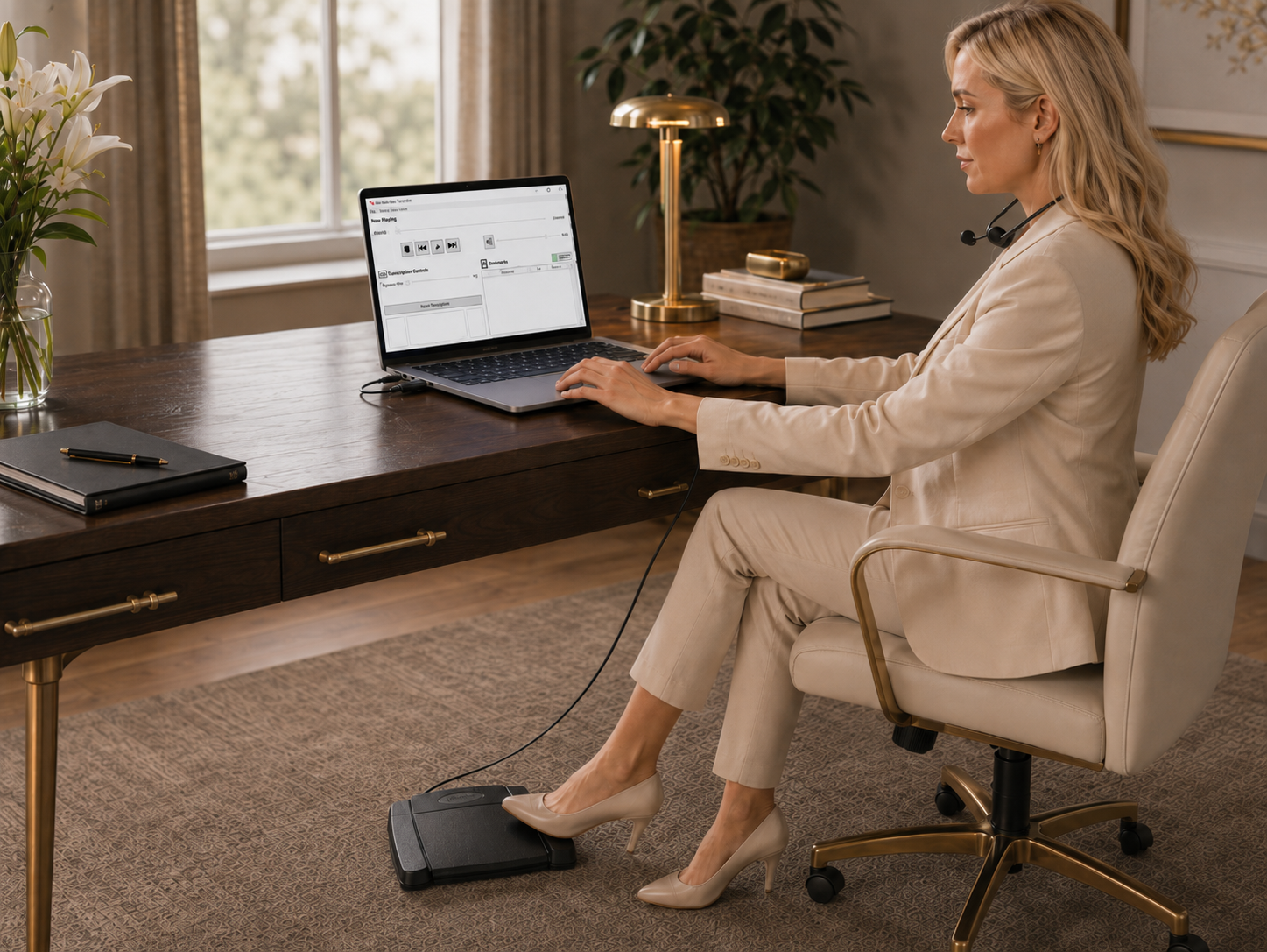
The Martel All N One Transcription Kit, SKU 1040, is the standard audio option in this guide. Its current listing brings together transcription software, a three-control USB foot pedal, a transcription headset, installation assistance and technical support. Martel lists Windows 10 and Windows 11 compatibility. Confirm the supplied edition and your particular computer before ordering, especially when an employer manages software installation.
The kit is intended for human listening and transcription. Its foot control does not itself turn speech into typed sentences. The person still decides how to handle names, punctuation, speaker changes and unclear passages. If your office separately uses speech recognition, the playback kit can help with listening and correction, but do not assume an automatic-text service is included simply because a package is called a transcriber.
Martel lists WAV, MP3, Opus, PCM/LPCM, ADPCM and CD-audio support for the standard kit. For video or a wider range of incoming formats, examine the All N One Audio/Video Transcription Kit, SKU 1518. These are different buying choices. Select based on representative files rather than the number of format names printed on a page.
A typist who regularly receives ordinary supported audio can start by evaluating SKU 1040. A person who receives MP4 video should compare the audio/video package instead. An office with Olympus or OM recorder files should examine the Olympus AS-2700 transcription kit and verify its particular file and software workflow. A DM246 owner who needs separate channel selection should examine the T147 kit rather than assuming an ordinary audio player offers that function.
There is a fifth situation: someone already working inside Case CATalyst may only need compatible AudioSync foot control. The Case CATalyst foot pedal sold by Martel is a different purchase from a complete standalone transcription kit. Buying additional playback software is useful when it solves a separate need; it is not automatically necessary for every reporter.
For a mixed workload, label the exceptions. If ninety percent of assignments are MP3 but the remaining assignments are video depositions, that exception can determine the sensible package. If all assignments are supported audio and video arrives only as a hypothetical future possibility, ask whether that expansion is worth buying now. A clear inventory makes the decision more concrete than choosing whatever appears most comprehensive.
Confirm the operating system, available USB connections and the permissions required to install the current application. A USB-C-only laptop may need an appropriate adapter for a USB-A pedal. Check the connector on the supplied headset too. A headphone connection, a combined headset jack and a USB audio connection are different arrangements, and the package photograph should not substitute for confirming what will actually ship.
Consider the rest of the workstation before using every port. A mouse, keyboard, external storage device and pedal may all compete for the same connections. If you use a hub, include it in the acceptance test. Start troubleshooting a connection problem with the pedal directly connected where possible, then reintroduce the adapter or hub after confirming the basic setup works.
Arrange installation at a time when the computer and a non-confidential sample are available. Keep the order information and activation instructions together so support can identify the supplied software. Ask how installation assistance will be delivered and what access your employer permits. Treat the current installation directions as authoritative; old instructions found in a search result may describe a different release or pedal configuration.
Choose a stable position for the pedal where your foot can rest without reaching. Place the keyboard and display so you can read the document and reach the controls comfortably. Check that the pedal cable will not catch under the chair. These small arrangements matter because transcription involves many repeated movements, and a setup that feels acceptable for one minute can become distracting during a long assignment.
Connect the headset and confirm that ordinary computer audio reaches it at a comfortable level. Then open the transcription software and play a short sample. Check the application volume and the computer output selection separately. If sound comes from the laptop speakers, changing the pedal assignment will not fix the problem; first establish where playback audio is being sent.
Follow the supplied instructions to select or configure the supported pedal. Test each control individually and write down its action. Do not rely on left, center and right having the same purpose in every application. An assignment that suits one transcription program may differ from the commands used inside a CAT application or from a previous typist's preferences.
Play and pause control whether the recording advances. Manual rewind lets you return farther when you need context. Adjustable back-step is a small automatic replay around a pause-and-resume action, depending on the application's settings. Too little back-step can make you miss the start of a phrase. Too much can force you to listen to the same sentence repeatedly. Begin with a modest setting and adjust it using actual typing.
Practice with one paragraph before attempting a full interview. Listen to a short phrase, release or operate the assigned pause control, type the phrase, and resume. If you repeatedly lose your place, reduce the amount you try to remember or change the back-step. The objective is a repeatable rhythm in which the recording, your typing and your review all stay connected.
Test foot control while the document application has focus. Some setups respond correctly when the playback window is selected but behave differently after you click into a word processor. That is a configuration question to resolve before real work. Our transcription foot-pedal buyer's guide explains why a pedal's USB connection alone does not establish compatibility with every program.
Give the assignment a job reference and keep that reference with both the audio and the document. Use a working location approved by the person or organization supplying the recording. Confirm that the complete file has arrived before starting. A filename appearing in a folder does not prove that a long transfer has finished or that the recording opens successfully.
Listen briefly at the beginning, somewhere in the middle and near the end. Compare the reported duration with what the sender expects. Ask about multiple parts if the recording stops unexpectedly. Establish speaker names and the requested document style before investing hours in typing. Resolving those questions early is usually easier than reformatting a finished document or discovering a missing second recording at delivery.
During drafting, mark uncertainty consistently. Keep a reference to the location that needs another listen rather than inventing a word that seems plausible. Review those locations with enough surrounding speech to understand context. For a proper name, obtain an approved spelling source when available, while keeping the distinction between verifying spelling and changing what the speaker actually said.
Consider a fictional office receiving a thirty-minute interview and a ten-minute dictated letter. The interview needs speaker labels, reasonably faithful wording and a list of unresolved passages. The letter needs the author's intended text, with spoken editing directions handled according to the office's instructions. Both recordings may be MP3, but their document requirements are different. The file format does not tell the typist what editorial decisions are authorized.
For the interview, the typist first identifies the participants, checks the beginning and ending, and creates a short speaker key. For the letter, the typist establishes how the author announces paragraphs and replacements. The same pedal controls playback in each task, while the instructions governing the finished document remain specific to the assignment. This is why a buying discussion should include the work, not just the hardware.
Use an invented assignment like these during training. Include an unfamiliar name, a number, an interruption and a correction. After the trainee finishes, compare the document with the recording and discuss each mismatch. A realistic sample teaches more than repeatedly starting and stopping a perfectly clear sentence, because it exposes where the actual workflow needs an agreed rule.
A slower playback speed can make a rapid phrase easier to follow, but slower is not automatically clearer. Listen at normal speed first, then make a limited adjustment and return to normal for context. If a voice sounds unnatural at an extreme setting, that setting may make a particular consonant harder to identify. Use the control as a listening aid, not as proof that an uncertain word has become certain.
Keep headset volume comfortable. A louder signal can help with a quiet passage, but increasing volume cannot restore speech that was never captured or undo severe clipping in the original recording. Compare the quiet passage with adjacent clear speech before making a large change. If the entire file is silent, check the output device and application controls before assuming the source contains no audio.
For long sessions, arrange short pauses and keep your working position consistent. If discomfort or listening fatigue makes you repeatedly miss words, the apparent time saved by continuous typing can be lost during correction. Measure progress by completed, reviewed work rather than by how long you can keep the recording running without stopping.
A file extension is a useful starting point, not a complete compatibility test. WAV files can contain different audio encodings and channel arrangements. MP3 is a different encoding, and Opus files may arrive through a reporter's export process. Ask the sender for a representative sample and test that exact kind of file in the proposed application. Our dictation file-format guide provides additional background.
Channel support is a separate question from simply opening a file. Playing a four-channel recording does not necessarily mean a program lets you select each channel independently. If that selection matters, follow the DM246 four-channel transcription guide. Conversely, a single mixed recording cannot gain original independent microphone channels merely by opening it in a multichannel application.
Martel describes the standard transcriber's speed, volume and back-step controls as playback changes that leave the source recording unchanged. Keep your own storage and backup routine deliberate as well. Avoid overwriting an original with an experimental conversion. If you need a different file for another application, retain the supplied version and clearly identify the derivative so that later questions can be traced to the correct source.
Compare package contents, compatible files, installation help and the accessories you still need. A software-only offer and a complete kit are not equivalent purchases. A spare pedal is useful only if the software supports it. A second computer may introduce a separate license question. Confirm those details before treating an apparently lower advertised amount as the lower cost of a functioning workstation.
When asking Martel for help choosing, describe the recording source, file examples, computer and intended task. Mention video, independent channels or CAT integration explicitly. There is no need to send a confidential recording simply to ask an initial compatibility question; a non-sensitive sample or a description can establish the next step. The right purchase is the one whose important assumptions have been checked before daily work depends on it.
Finish your evaluation with a complete trial: receive a sample, open it, type while operating the pedal, save the document, close the applications and find the correct files again. Include a difficult passage and a correction. If both a primary typist and a backup person will use the station, have each perform that same trial and record any settings that need explanation.
Create a simple record with the computer name, operating system, application edition, pedal model and test date. Under those details, list the sample files you tried and whether each opened, played through the headset and responded to all assigned controls. Record the result of typing with your document window selected. This worksheet is useful when another staff member needs to repeat the setup or when a future update changes its behavior.
Add a practical comment beside each result. For example, “MP3 interview plays correctly; back-step reduced after trial” is more informative than a general check mark beside audio. If a test fails, describe the action and what happened: the application opened but produced silence, the pedal worked until the document was selected, or the recording stopped before the expected ending. Specific observations help support identify the next check without repeating the entire installation.
In a small office, a transcription station often becomes dependent on one person's memory of its settings. Keep the routine short enough for a colleague to follow: where assignments arrive, which application opens them, how the pedal is assigned, where drafts are saved and how unresolved passages are reported. Test that routine with a fictional job rather than waiting until the usual typist is unavailable and a deadline is approaching.
A shared computer also needs an agreed change process. If one person alters the back-step, headset output or pedal assignments, the next person should be able to recognize and restore the expected configuration. Keep any license information in the approved office location. Avoid confusing a shared physical desk with permission to install the program on any number of additional computers; those are separate equipment and licensing questions.
Record the time spent receiving a sample, preparing the document, typing, resolving uncertain passages and completing the final listening review. That breakdown shows where equipment helps. A pedal may reduce repeated mouse use, while a clear job reference may remove minutes of searching. If most delay comes from unidentified speakers or missing files, a new headset alone will not solve the whole problem.
Repeat the same short exercise after the typist becomes familiar with the controls. Compare complete reviewed results, not just the number of words entered. Note whether corrections decreased and whether the person could resume after an interruption without losing the assignment. A purchase that makes daily work more predictable can be valuable even when it does not produce a dramatic headline speed increase.
A conventional kit supplies playback software, a compatible pedal and listening equipment for a person who types or reviews the words. Automatic speech recognition is a separate capability. Confirm the actual package contents and workflow rather than assuming the word transcriber promises automatic text.
Examine SKU 1040, the All N One audio kit, and test a representative file. If you receive video, broader audio formats or recordings needing independent channel selection, identify that requirement before choosing. Those needs can point to a different package.
That is the intended working pattern with a properly configured supported setup. Test it with the document window selected, not only with the playback window active. If controls stop responding, resolve the application's pedal settings before taking on a real assignment.
Not if you already receive suitable recordings. A playback kit handles the listening side of the job. Purchase a recorder when you also need to create audio or improve a demonstrated recording problem, using the recorder and playback requirements together.
Choose by the current supported-format list. Martel's audio/video kit is the option to examine for MP4 video and video transcription. Do not treat an audio package's ability to play a sound file as a promise to display and control video.
There is no single correct amount for every typist and recording. Try a short replay setting, type a realistic paragraph and adjust it until you resume without losing the first word or repeating an unnecessarily long passage. Keep a note of the setting that works.
An appropriate adapter can connect the physical plug to your computer. It does not add support to an application that does not recognize that pedal. Check both the electrical connection and the software's supported control arrangement.
The time varies with clarity, speaker changes, subject matter, required detail and review. Time a representative sample through completion, including corrections and formatting. Avoid planning an entire workload from the speed of one unusually clear recording.
It can make existing sound easier to hear within comfortable limits, but cannot recreate missing speech. Check the headset and output settings, compare neighboring passages and mark unresolved wording. A confident-looking document should not conceal uncertainty in the recording.
Verify the license terms of the exact package and supplied software edition. Do not infer an installation allowance from the number of physical accessories or from another kit's listing. Ask how a second workstation should be equipped and activated.
Identify where recordings, completed documents and activation information are stored. Confirm that the replacement can open representative work and operate the pedal. Follow the supplied software instructions for any license move and your organization's process for retained files.
Provide your computer's operating system, the source and types of recordings, your pedal if you own one, and whether you need video or separate channels. Describe the finished work too. Those details make a product recommendation more useful than asking for the most powerful kit.