Legal and Body-Camera Video Transcription: Equipment and Workflow Guide
Choose legal and body-camera video transcription equipment. Learn source-file checks, foot-pedal setup, speaker references, review and delivery workflows.
Choose a video transcription kit for Zoom MP4s and other recordings. Learn file checks, foot-pedal setup, speaker review, timestamps and troubleshooting.
A video transcription kit helps a person control recorded video while typing or checking the spoken content. A compatible foot pedal can reduce repeated mouse use, while a headset supports close listening. The useful purchase is a complete playback arrangement that opens your actual recordings, lets you return to a difficult passage and continues responding while you work in the document. An MP4 label alone is not a complete buying specification.
Video assignments include interviews, recorded meetings, remote depositions, training sessions and approved police-video exports. Although each may arrive as a video file, the expected document can differ substantially. One client may want a faithful transcript with speaker labels. Another may want selected passages with time references. A third may need text prepared for a later captioning process. Establish the deliverable before choosing the equipment and estimating the work.
This guide focuses on human transcription and review with the Martel All N One Audio/Video Transcription Kit, SKU 1518. It explains how to evaluate the package, prepare a Zoom recording, configure playback and handle common technical questions. For audio-only work, compare the separate audio transcription kit buying and setup guide.
Martel lists video playback software, a heavy-duty USB foot pedal and an ultralight transcription headset in this package. The product page describes Windows operation, adjustable playback speed and backspace, volume controls and bookmarks. It also lists two software licenses. Confirm the supplied edition, installation arrangement and current license-transfer process when planning how two computers or two people will use the purchase.
The listing includes MP4, MOV, AVI, WMV, MKV and other video formats. Treat this as a starting point for a compatibility conversation, not a guarantee that every file with one of those extensions behaves identically. Ask about the specific recording source and test a representative exported file. A file inside a proprietary camera system or a protected online viewer may require an authorized export before ordinary playback software can open it.
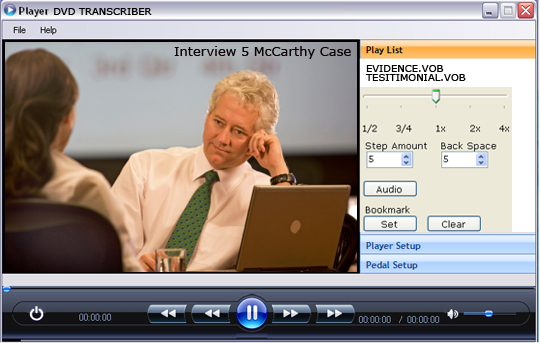
A foot pedal tells compatible playback software when to play, stop or move through the recording. It does not decide speaker names, spell unfamiliar terms or automatically produce a reviewed document. The typist still listens, types and checks the result. If a separate system has already generated draft text, controlled playback can help a reviewer compare that draft with the recording and correct what was actually said.
Keep the purchase question specific: do you need to watch and control video while typing, or do you need a separately supported automatic recognition feature? A package can be useful for the first task without supplying the second. This distinction is particularly relevant to Zoom searches, because people use the word transcription for several workflows, including cloud-generated drafts, caption files, human typing and final transcript review.
Zoom's official recording-format documentation identifies MP4 as an audio/video recording and M4A as audio-only. It also distinguishes saved chat text, playlists and caption or transcription files. Keep these roles separate when accepting an assignment. A chat transcript contains messages entered in chat; it does not become a word-for-word record of everything spoken merely because it sits beside the meeting video.
Likewise, an available caption or automatic transcript file can be a reference or starting draft only when the assignment permits it. Listen to the recording when checking names, numbers, interruptions and speaker changes. Preserve the relationship between the text and the actual media. A sentence that reads fluently can still reflect a recognition error, an omitted response or a speaker attribution that needs correction.
File names can change between Zoom versions and recording arrangements. Identify the actual extension, duration and contents rather than looking only for an old filename such as zoom_0.mp4. The official Zoom recording-file guide explains those file types. The practical test is whether the delivered video opens and includes the portion of the meeting you were assigned.
Ask the sender for the recording parts, their intended order, the expected duration and any accompanying speaker information. Establish whether a meeting was stopped and restarted or whether separate sessions belong to the same assignment. A single download link may lead to several files. Do not begin a long transcript on the assumption that the first visible file contains the entire event.
Confirm that you have permission to download the intended recording and that the download has finished. Opening a web link successfully is different from possessing a complete file suitable for the transcription application. If you receive only a restricted viewer, ask the authorized sender about the approved export or access process. Do not assume the kit bypasses login requirements, encryption or other restrictions imposed by the recording system.
Create an assignment inventory before renaming anything. Record the supplied filename, file size, apparent duration and part number. Keep the original names available in your notes if your organization uses working names. This becomes useful when a reviewer asks about a passage and the sender's original name differs from the shorter name used at the typing workstation.
Arrange the playback window and document so you can see enough video to identify speakers without repeatedly hiding your text. A second display can help if you already have one, but a workable single-screen layout can also be tested. The right layout keeps the current paragraph, playback position and relevant visual information available without constant window rearrangement.
Connect the supplied headset and confirm the selected audio output. Then configure the supported pedal using the current instructions. Identify each control before opening a real job. Test play, stop, rewind and any assigned forward control. After that, click into the word processor and repeat the test while typing a few lines. This establishes whether the complete working arrangement behaves as expected.
Place the pedal on a stable surface and route its cable away from the chair. Set a comfortable listening level using ordinary speech, then check a quieter sample. Avoid making a large volume adjustment based on one silent section. A mute, an incorrect output device and a genuinely silent part of the source call for different responses, so establish which condition you are hearing.
The first pass is orientation. Check the opening, a middle section and the ending, identify the participants as far as the source permits, and learn the structure of the recording. Note any pauses, introductions, changes of room or obvious file boundaries. Orientation does not replace full transcription; it prevents basic surprises from appearing only after most of the document has been drafted.
The second pass is drafting. Work in manageable phrases, using the pedal to stop and resume. Mark uncertain wording and record a useful location reference. Keep speaker labels consistent with the instructions for the assignment. If the camera switches to someone else while a person continues speaking, do not automatically assign the words to the face currently displayed.
The third pass is review. Compare the completed document with the recording, paying particular attention to transitions, short answers, names, numbers and places where you marked uncertainty. Check that the beginning and ending of every supplied part are accounted for. A polished document layout is valuable, but it should follow a complete listening and checking process rather than conceal skipped material.
Video can provide useful context, but it does not always establish who is speaking. A remote meeting may show a shared screen, an active-speaker tile, a display name chosen by a participant or several people in one room. A person can also speak while off camera. Use authorized participant information and the audible sequence together, and preserve uncertainty when the available material does not support a reliable identification.
Create a speaker key with the names or neutral labels permitted for the assignment. Record unresolved changes for review. If a participant introduces another person, confirm whether that introduction actually identifies the next voice or merely discusses someone who is absent. Avoid turning a likely association into a confident label simply because the recording is difficult and a deadline is approaching.
Agree on the reference system before filling a document with times. Elapsed playback position, a timestamp burned into the image and a clock time supplied by a client are different references. If you note 00:12:30, identify whether it means twelve minutes and thirty seconds into a particular file. A reviewer should not have to guess which of several clocks you used.
For recordings delivered in parts, include the part or filename with a location. The same elapsed time can exist in every file. Check several references by reopening the recording and locating the quoted passage. If a timing mismatch grows as the recording progresses, report the pattern for technical review rather than silently applying an invented correction to every later reference.
When captions are the eventual goal, ask what the next person requires: a transcript, timed text, a particular caption format or another deliverable. A document containing spoken words is not automatically a finished caption file with verified timing. The transcription kit's video controls can support review, while the requirements for the final deliverable remain a separate part of the job.
If a sender supplies separate participant audio recordings, inventory them alongside the main video. Do not assume every side file begins at the same instant or contains the entire meeting. Establish how each one relates to the principal recording before using it to clarify a passage. Keep a note of the file and position used when a secondary source resolves something that was difficult in the main video.
Separate files are also different from a single four-channel DM246 recording. A collection of meeting audio files does not establish compatibility with a specialized channel-selection application. Read the four-channel DM246 transcription guide when that is the recording system involved. Select tools by the actual recording structure rather than by the number of files in a folder.
Ask about the computer's operating system, installation permissions, display arrangement and available storage. Older minimum specifications are not a useful prediction of how smoothly every modern high-resolution recording will seek or play. Test the type and length of video you actually receive on the intended workstation. Include the adapter, external drive or network location if it will be part of daily use.
A video container, such as MP4 or MOV, can hold different encoded video and audio streams. One MP4 opening successfully does not prove that every camera export marked MP4 will work the same way. If a file displays a picture but produces no sound, report both observations. They help distinguish an audio-stream question from a missing file, a headset-output problem or a generally unsupported recording.
Avoid changing a filename extension as a supposed conversion. Renaming an unsupported file does not change its underlying contents. If an authorized export or conversion is required, preserve the received original and clearly identify the working derivative. Test the beginning, middle and end of the derivative against the source so a convenient playback copy does not quietly introduce a missing section or timing problem.
First determine whether the application opens the file. Next establish whether picture and sound play using the on-screen controls. Only then test the pedal. If on-screen playback works but pedal control does not, focus on the configured control arrangement. If the file itself will not open, repeatedly changing pedal assignments is unlikely to address the underlying issue.
For silence, check the headset output, application volume and a known working sample before concluding that the recording is defective. For slow seeking, note whether the file is local or on removable or network storage. For a freezing picture, record whether audio continues. Give support those observations together with the file source, software edition and computer information, using a non-sensitive test file when appropriate.
If several files from one sender fail but ordinary samples work, request a representative approved export rather than treating the entire workstation as broken. If the same file works on one approved computer but not another, compare the supplied editions and setup before making broad assumptions. Careful comparisons shorten troubleshooting and reduce unnecessary purchases.
Buy around an identifiable workload. A typist receiving supported audio may be served by the standard audio package. Someone receiving Zoom MP4s, interviews and other video should examine SKU 1518. A court reporter working inside AudioSync has a different integration question. Our court-reporter transcription equipment guide separates those choices.
For body-camera recordings, combine compatibility testing with the assignment-handling process described in the legal and body-camera video transcription guide. The fact that a kit plays video does not establish a complete evidence-management process. The useful purchase discussion includes the authorized export, speaker information, references, review requirements and delivery method alongside the physical equipment.
Before putting a new station into service, transcribe and review a fictional sample with a speaker change, an interruption and a difficult name. Close the applications, reopen the files and locate a marked passage. Have the backup typist repeat the exercise if the workstation will be shared. That complete rehearsal is a better readiness check than simply seeing the pedal appear as a connected USB device.
For an acceptance test, create an invented meeting with two speakers, a short screen share, a pause and a spoken correction. Include a passage where a person speaks while another person's image is visible. Add a number and an unfamiliar name. This sample makes the typist practice listening decisions as well as playback controls, without involving a real confidential assignment.
Ask the typist to produce one page, mark two locations and identify one uncertainty. Then reopen the recording and have someone else locate those references using only the document. If the second person cannot find them, improve the reference convention before using it across several hours of video. If the pedal stops responding after a window change, record that specific behavior and resolve it before continuing.
Repeat the trial from the same storage location intended for normal work. A short file played from the computer's internal drive does not test an arrangement that usually reads large recordings from a remote location. Note any delay when seeking to the middle or returning after a pause. Describe those observations to support rather than assuming that an impressive processor name guarantees every storage and video combination will behave alike.
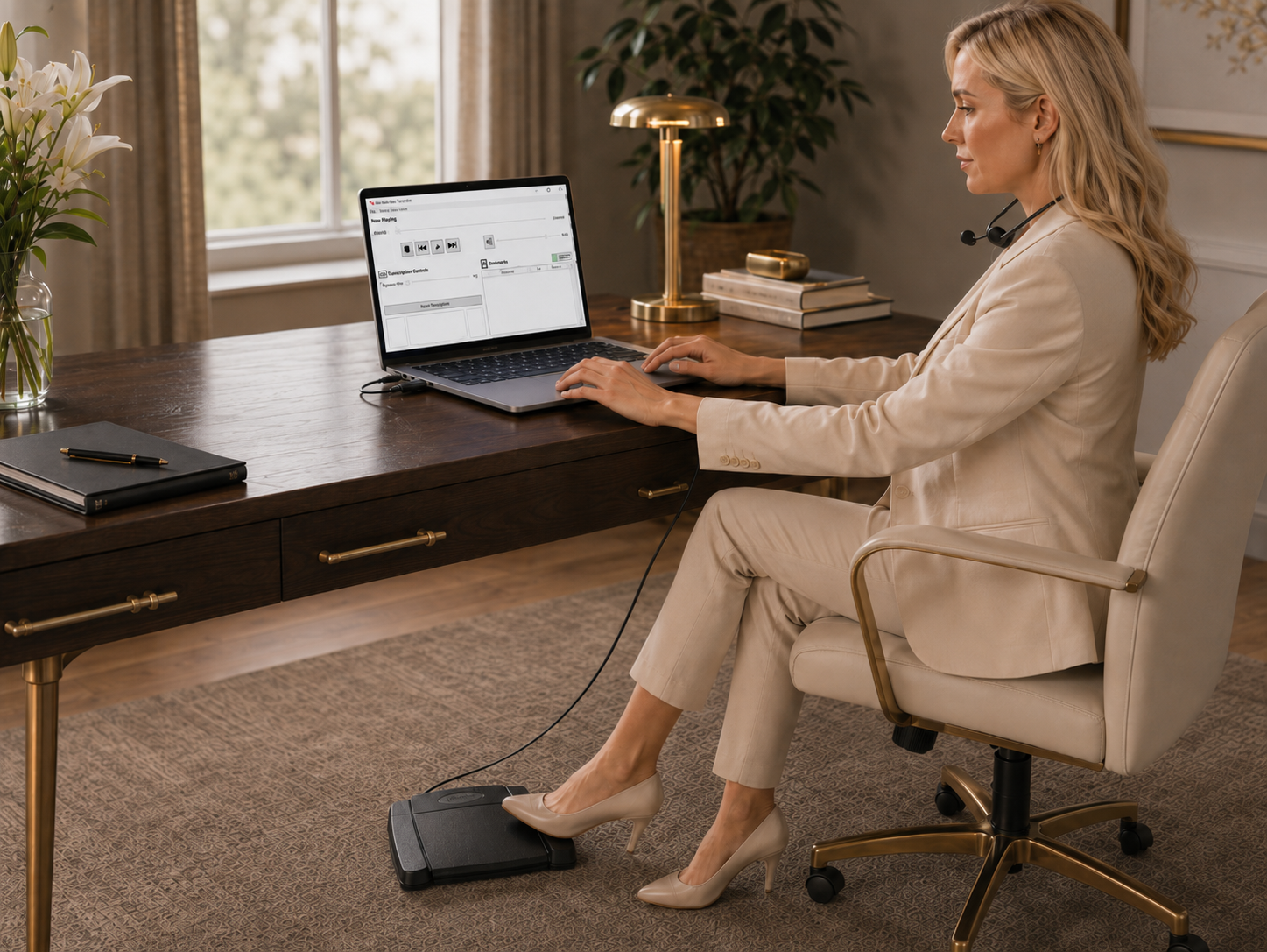
The standard audio kit and the audio/video kit solve related but different problems. If an assignment requires only supported audio, the audio kit may provide the controls you need. If it requires watching the recording, checking visual context or reviewing an MP4 as video, evaluate the audio/video package. Buying by the file and task avoids discovering an important limitation after the recording has arrived.
Write the decision in one sentence before ordering: “We receive Zoom MP4 interviews and need to watch, pause and rewind them while typing.” Add the intended Windows computer and any exceptional file source. That statement gives Martel a concrete compatibility question to answer. It also provides a useful acceptance criterion when the equipment arrives, because you can test exactly the activity the purchase was meant to support.
Start with the All N One Audio/Video kit, SKU 1518, and confirm compatibility with a representative file from your recording process. It supplies controlled playback for a person typing or reviewing the spoken content. Check your computer and the supplied software edition before ordering.
The workflow described here is human transcription with video playback, a pedal and a headset. Automatic recognition is a separate capability. If draft text already exists, the kit can support listening and correction, but that does not establish that automatic text generation is included.
Use the file required for the assignment. MP4 includes video and audio; M4A is audio-only. Visual context may matter for speaker review or assigned descriptions. Confirm the complete deliverable and supported file types instead of selecting solely by which download is smaller.
It records chat messages rather than all spoken dialogue. Keep chat, captions, automatic transcript text and the recording distinct. If chat forms part of the assignment, identify its source and role rather than merging it into speech without an agreed rule.
No universal compatibility follows from a USB plug. The application needs supported pedal input or an appropriate documented configuration. Use the supplied kit instructions and test control while typing in your actual document application.
It identifies a container, not every detail of the encoded streams or any restrictions on the file. Test a real export from the relevant system. A file that requires a proprietary viewer may need an authorized export process before it can be used in ordinary playback software.
No. Verify the current package's installation and transfer terms. Plan which computers will use the supplied licenses, and ask how a replacement workstation is handled. The number of people who occasionally use a desk is a separate question from software activation rights.
Follow the assignment's labeling rules and keep a reference to the relevant passage. Use approved participant information, visual context and the audio sequence together. If those do not establish identity, retain the uncertainty for review rather than supplying a plausible name.
You can evaluate supported playback-speed controls, but choose a setting that preserves comprehension for the task. Return to normal speed when checking difficult language or context. Measure complete reviewed work rather than assuming faster playback always means faster accurate transcription.
Possible causes include the selected computer output, application volume or the file's audio stream. Test the headset with a known working sample and compare on-screen playback before changing pedal settings. Report what works and what fails so support can narrow the issue.
The equipment supports playback and human transcription. Document requirements, caption timing, review and any required certification depend on the assignment and the authorized professional process. Confirm those requirements before estimating or accepting the work.
Describe the recording source, file extension, expected duration, computer and intended controls. Ask whether a non-confidential sample can be tested. For restricted material, establish the approved support process before sharing any actual recording.