Yes. Martel’s listing for its USB stenomask, SKU 1941, describes use with USB-C and USB-A laptop sockets on the identified current model. For the USB-C arrangement, Martel specifies a suitable adapter cable. Check the plug actually supplied with your mask, the port capabilities of your reporting laptop, and whether the adapter supports a USB data connection to a microphone. Then verify the selected input with a saved voice recording.
A physical USB adapter and an external microphone sound card solve different problems. The Martel USB stenomask already contains the sound card for its USB audio connection. A suitable USB adapter allows the microphone’s existing digital path to reach a differently shaped computer port. An analog audio adapter is relevant to a mask with an analog microphone output and an appropriate receiving arrangement. Determine which type of mask you own before buying either item.
Martel equipment in this guide
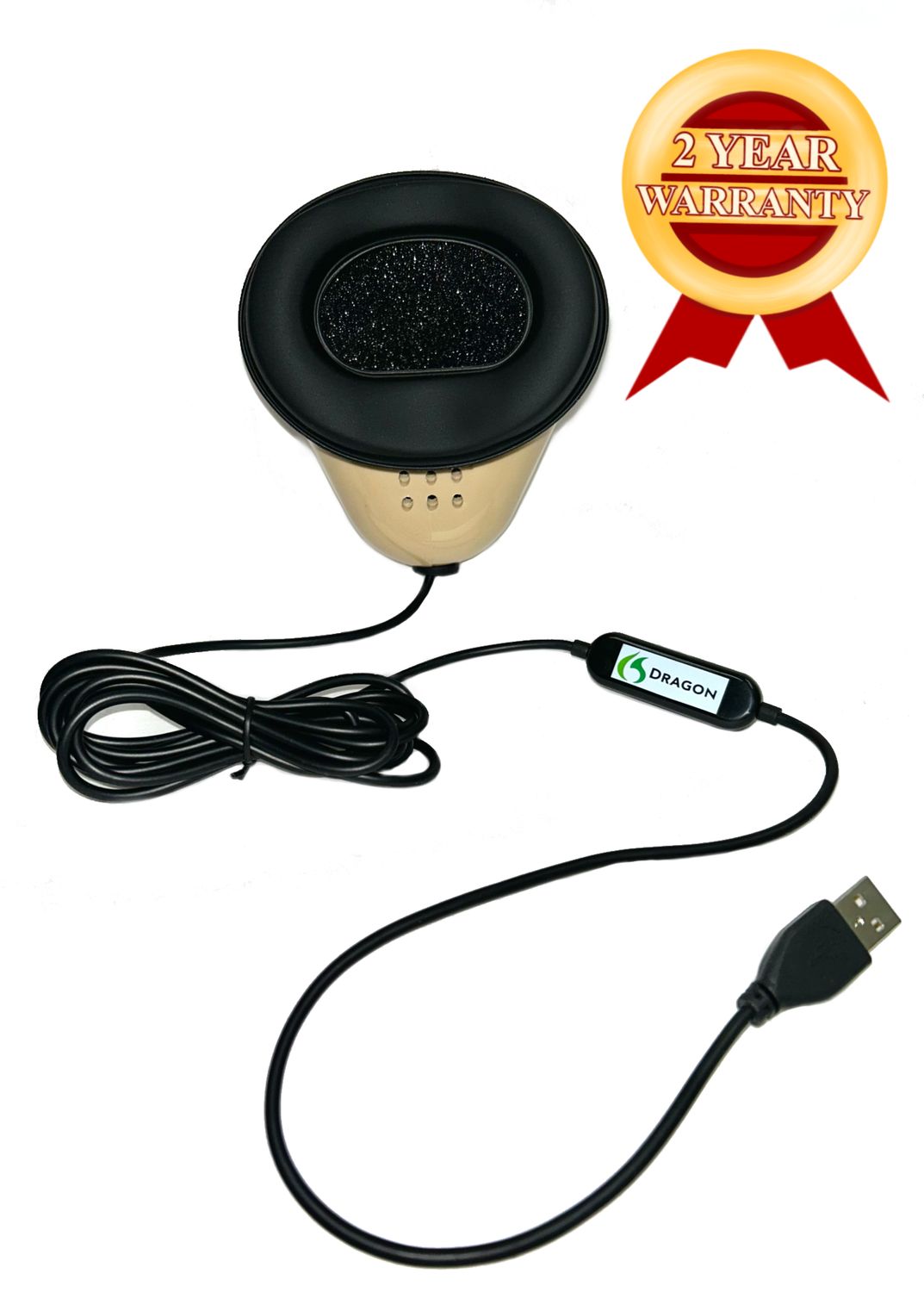
Identify the two ends you need to join
Look at the plug on the cable from your own mask. The familiar USB-A plug is rectangular. A USB-C connection is smaller, with an oval-like outline and a reversible plug design. Match your observation to the documentation for the exact Martel mask. A listing that describes a current model does not by itself identify every older or differently configured unit a reporter might already own.
Look at the computer next. A laptop with only USB-C sockets might use those sockets for several purposes, depending on the model. Consult its port description to identify the connection that can host a USB microphone. If a dock sits on the desk, treat the dock and the laptop as separate devices. A marking on the dock describes the dock port, while the laptop documentation describes the connection linking it to the computer.
Draw the connection as two views rather than as a list of brand names. One view shows the laptop’s available socket. The other shows the microphone’s plug. If the microphone ends in USB-A and the computer provides a USB-C host port, the adapter needs a USB-C plug for the laptop and a USB-A receptacle for the microphone. A cable with two loose plugs that cannot accept your microphone’s attached plug does not complete that arrangement.
If a suitable adapter or dual connector was already supplied with your unit, identify it before ordering another one. Consult the contents of the particular offer or ask Martel about your actual mask. The important observation is the complete chain in front of you. Packaging, earlier photographs and examples from a different reporting workstation can show useful possibilities without establishing what came with your order.
Check that the connection carries microphone data
A USB microphone needs a data path between the microphone and the host computer. An accessory described only by its charging capability leaves that question unanswered. Look for documentation that the adapter supports USB data peripherals through the intended arrangement. If the manufacturer describes a USB-A receptacle for connected data devices and a USB-C plug for a host, the description addresses the right direction of use.
Do not choose the part by the maximum charging wattage alone. A large number printed on packaging can describe power delivery while saying little about the particular peripheral arrangement you need. Likewise, a high advertised data speed does not tell you whether the part has the right combination of plugs and sockets. The first purchasing facts are connector direction, intended host use and support for USB data. The reporter’s application check comes after those facts.
A photo can reveal a subtle ordering mistake. The buyer sees a USB-A plug sticking out of an adapter and a USB-C receptacle at the other end. Their microphone also ends in a USB-A plug and their laptop also has a USB-C receptacle. The individual names on the listing resemble the names on the shopping list, but the mating ends are wrong for the intended connection. Describe the two ends in full when requesting an adapter.
USB specifications describe arrangements that connect a Type-C host to certain legacy USB peripherals. An individual product still has its own documentation and intended use. Check that the adapter you order is supported for your computer and the particular microphone connection. A reporting setup is sufficiently important that “the plug went in” should be the beginning of a check, followed by device recognition and a real saved sample.
Keep a digital mask separate from an analog mask on the shopping list
The Martel USB stenomask has a built-in sound card and delivers its microphone signal digitally to a compatible computer. You are preserving that digital path when you adapt the connector to USB-C. The adapter does not have to translate microphone level from a 3.5 mm analog plug. Describing the order as “a USB-A microphone to a USB-C laptop data connection” makes the intent clear.
An analog mask such as the Martel MM-18, SKU 370, supplies a different signal. A computer that has no suitable analog microphone input may need a compatible audio interface to receive that analog output. Such an interface must accept the particular microphone signal and present a supported computer connection. Its job involves handling audio at a different stage than the physical USB connector adaptation used by SKU 1941.
Another common mistake is to substitute a headphone accessory for a microphone connection. A small adapter may offer playback through a headset or headphones. Whether it also supports a particular external analog microphone depends on its specification and the required wiring. For the Martel digital USB mask, the relevant question is whether the adapter allows the mask to operate as a USB peripheral on the computer. A playback-only audio accessory is a different purchase.
The Martel dual-output stenomask, SKU 1945, has a USB computer path and a separate 3.5 mm microphone output for a compatible recorder. If you own that model, put the two connections on separate lines. The computer may use a suitable USB-C arrangement, while the recorder requires its compatible microphone input. Adding a physical USB adapter to a single-output model does not add the analog output carried by the dual-output model.
Map the ports at the station where you will actually work
Before ordering, draw the short side of your laptop and mark each available socket. Write what normally occupies it during a deposition. A charger might occupy one port, a display connection another and the reporting microphone a third. Knowing which socket you usually have available matters more than the number of sockets printed in a general description. Include any dock the assignment permits you to use.
Now mark which connections you must have simultaneously. A laptop can accept the mask at a desk with no other devices attached while the real reporting arrangement needs an external display, a remote audio device and power. Plan an appropriate documented dock or hub when multiple peripherals must use a common host connection. Then test the combination. A port count alone cannot verify the full arrangement.
If the only accessible host socket is on the opposite side from your dictating hand, take the actual working position into account. Check that the selected short adapter or connection reaches its intended location without disturbing adjacent plugs or pulling the microphone away while you speak. A bulky adapter can cover the neighboring port even when both connections are electrically suitable. The practical goal is a stable working placement for the session.
Identify what you can remove during troubleshooting without altering the intended microphone input. You might temporarily disconnect a presentation display to establish the simplest direct microphone path, then restore the display and repeat the test. Keep a note of which configuration passed. This observation becomes particularly useful if a setup works during a home practice session but behaves differently when every reporting peripheral is connected.
Create a direct baseline before evaluating a dock
For this reader-led exercise, use a compatible host port on the laptop and the minimum supported adapter arrangement for your actual mask. Follow the product instructions. Open the computer’s audio input selection and look for the microphone. If an application supplies its own device list, open that as well. The expected label can vary with the environment. Record the exact label displayed on your computer rather than searching for words that appeared on someone else’s screen.
Select the intended external input explicitly. Make a short recording of a fictional identification phrase such as “Direct connection, exhibit violet, first sample.” Save it, close the recording view and open the new file through your ordinary playback route. Listen for the identification phrase. This trial ties the observation to a particular microphone arrangement and avoids accepting an older sample from a different device.
Open your reporting or authorized recognition application after the basic recording check. Use another original phrase in a fictional job and confirm that the intended application uses the mask. If the local recording behaves normally but the reporting application does not see the input, investigate its device selection or supported setup. A successful local file is valuable evidence about the physical path without establishing how every application is configured.
If the laptop has two documented data-capable USB-C ports, note the result for the port you plan to use. If you later change ports because another peripheral must use the first one, repeat the application-level check. A working device selection in yesterday’s arrangement need not be the source selected in today’s session. The first direct test gives you a known configuration to return to, which helps distinguish a new routing problem from a longstanding microphone issue.
Add the dock or hub as a separate comparison
A dock adds more than one label to the drawing. One connection links the dock to the laptop; one downstream connection accepts the mask or its adapter. Additional devices can also be attached. Identify both microphone-related segments. A working display proves that the display route is working, and a charging indicator establishes the observed power behavior. Neither observation establishes that the mask was presented to the computer through the same dock arrangement.
Repeat the identification phrase through the dock, this time naming the dock trial. Listen to the saved file and note what input the application showed. If both direct and docked trials work, you have two documented arrangements for your equipment. If only the direct test works, the evidence narrows the question to the docked setup and the way the computer or application sees it. The evidence does not by itself prove the dock is defective.
Inspect the dock’s port labels and manual. A USB-C port intended for power input to the dock has a different purpose from a downstream port intended for data peripherals. An upstream port intended to connect to the host computer serves another role. A small diagram from the manufacturer can resolve this faster than trying unrelated combinations. Stay within the documented arrangement for your equipment.