Why Does a Reporter’s Microphone Start Humming When the Laptop Charger Goes In?
Trace hum that appears when a court reporting laptop charges. Compare saved CAT files and headphone playback, document the setup and decide which component to check.
A hum that appears when you connect a court reporting laptop’s charger gives you a starting observation. First find out whether the hum exists in the saved recording or only in the headphones you used that day. Then compare a battery-powered practice take with one made using the laptop’s approved charger, keeping the microphone, room, application and speaking positions the same. A repeatable change points to a particular equipment arrangement. It does not identify a defective microphone, an unsafe outlet or a ground loop by itself. Use normal equipment controls and an invented rehearsal for these comparisons.
Describe the sound in terms another person can check
Reporters use the word “hum” for several experiences. One person hears a steady low tone under every answer. Another hears a buzz only while moving a mouse. A third hears a soft fan beside the microphone while the laptop is charging. Before buying anything, describe whether the sound is continuous, whether it changes when someone speaks, and whether it occurs in both live listening and file playback. Include its effect on the job: perhaps the attorney’s question remains clear, but a soft witness’s address loses its final digit.
Use ordinary language before assigning a technical name. “A steady tone begins immediately after I connect the approved charger and I hear it during the quiet gaps in this named CAT practice file” gives a technician a condition they can try to reproduce. Guessing the frequency by ear or declaring the whole building improperly grounded can send the investigation in the wrong direction. If the apparent hum comes and goes independently of the charger in repeated practice, that observation matters just as much as a repeatable on-off result.
Put a fictional soft answer after the quiet gap. In the exercises here, a helper reads, “The key was in locker thirty, in the lower drawer.” A second person repeats, “Did you say locker thirteen?” The two numbers sound different only if their syllables are recoverable. A visible waveform or the mere presence of a tone cannot tell the reporter how much of that exchange a scopist will understand. Writing down the numbers as heard gives both desks a useful way to compare results.
Check playback before you make another recording
Use an older invented practice file whose sound you know, and play exactly the same passage with the laptop in its ordinary battery-powered condition. Then play that unchanged file on the same headset with the approved charger connected, if the equipment is in normal working condition and you are permitted to use it there. You are comparing two listening conditions for one existing recording. If the tone appears only during charged playback, some part of the local listening arrangement deserves attention before you conclude that new testimony is being recorded with hum.
Next play that same old file at a different authorized desk with a familiar listening device. Keep the volume comfortable and identify the same quiet gap and spoken locker number. A sample that is satisfactory on another desk but objectionable while listening on one particular powered laptop can send support toward the output or connected equipment. If the same old file hums everywhere, check how the reference was made or select another reference whose history is known. An uncertain baseline can make a new setup look worse than it is.
The word “backup” can complicate this check. The file heard in CAT might be audio associated with the job, while a separate recorder file has the same date and a similar name. Note the device and source of the recording being tested. Comparing two unrelated files on different headphones while changing the charger gives too many possible explanations. Keep the old-file listening test small. It should answer one question about the playback arrangement before the new microphone enters the investigation.
Make two saved takes with one planned change
Set up a short practice in the room where you can reproduce the issue. Connect the microphone as usual, check the recording input in the CAT application or recorder and set the listening level once. Position the laptop and microphone where the reporter actually works. Use the same two fictional lines and an interval of ordinary room silence. Start with sufficient battery power for a brief rehearsal and save a take clearly labeled as the battery condition. Listen for the quiet interval, the corrected number and the last word of the response.
For the charger condition, connect the manufacturer-approved power equipment normally. Do not change the microphone selection, input gain, USB port, headset or speaker positions as part of that action. Record the same exercise in a second practice job or file and close it normally. If the equipment configuration makes a controlled change impossible, write down what necessarily changes with it. For instance, connecting a docking station might supply power, a display and an audio device at once. That is a different trial from connecting a plain laptop charger.
Compare both files later through the same known playback equipment. Have a listener who did not watch the setup mark where a tone is present and which number they hear. Open the files in a different order to reduce the effect of expectation. If only the charger-condition recording carries the tone on that independent desk, report the capture difference. If the two saved files sound alike there but differ on your own charged laptop, return to the listening path. Both outcomes can be useful without guessing at an electrical repair.
Separate an audible fan or power brick from an electrical signal
A physical sound in the room can enter a microphone just like speech. During a supervised rehearsal, listen naturally near your own table while the laptop is charging. Is a fan operating near the microphone? Is a laptop on a hard, resonant surface? Is another approved device on the desk producing a sound you can hear without headphones? Describe what you observe. A charger-related change can coincide with a computer doing more work, a fan changing speed or a nearby accessory coming on.
Use an independent recorder with its own built-in microphones, if one is available and appropriate, to sample the same fictional exchange from an equivalent position. A physical sound audible in the room may also appear on that recorder. Keep track of whether the recorder is connected to the laptop or is genuinely using its own pickup. If the extra device takes an electronic feed from the original computer, it can inherit that path and supply much less information about what is actually in the air.
During a separate practice pass, move only the microphone away from the likely physical noise while keeping it favorably positioned for the witness. Have the witness read at the same level. A tone that changes with pickup position while the computer connections stay fixed is worth describing to support. A tone that appears in the digital recording even when a separate acoustic check hears no comparable room sound calls for a different investigation. Keep your observations proportionate. A separate recorder in a different position cannot establish absolute silence beside every component.
Follow the power and audio connections on the reporting desk
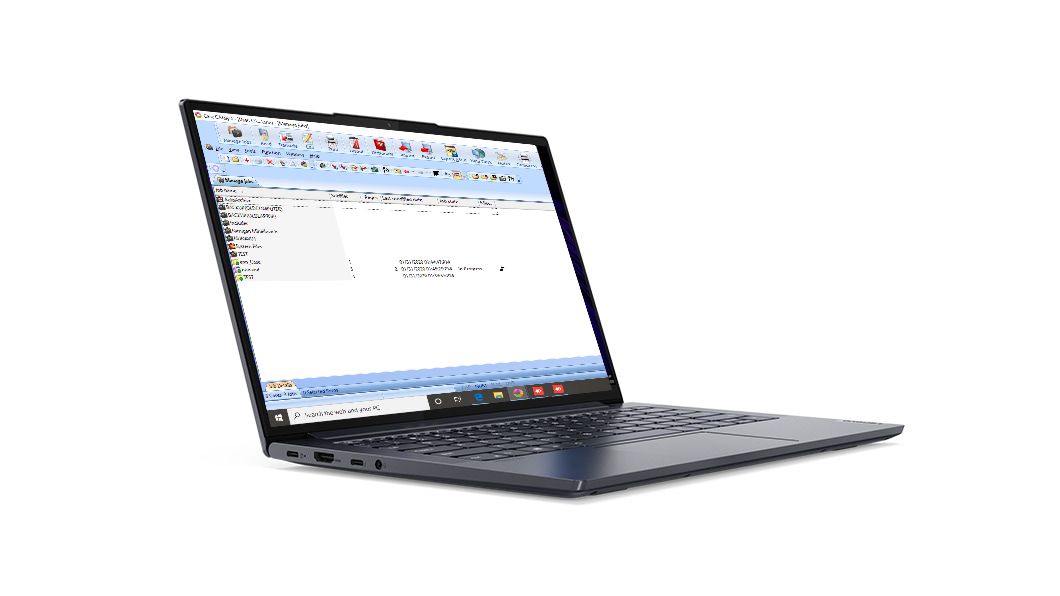
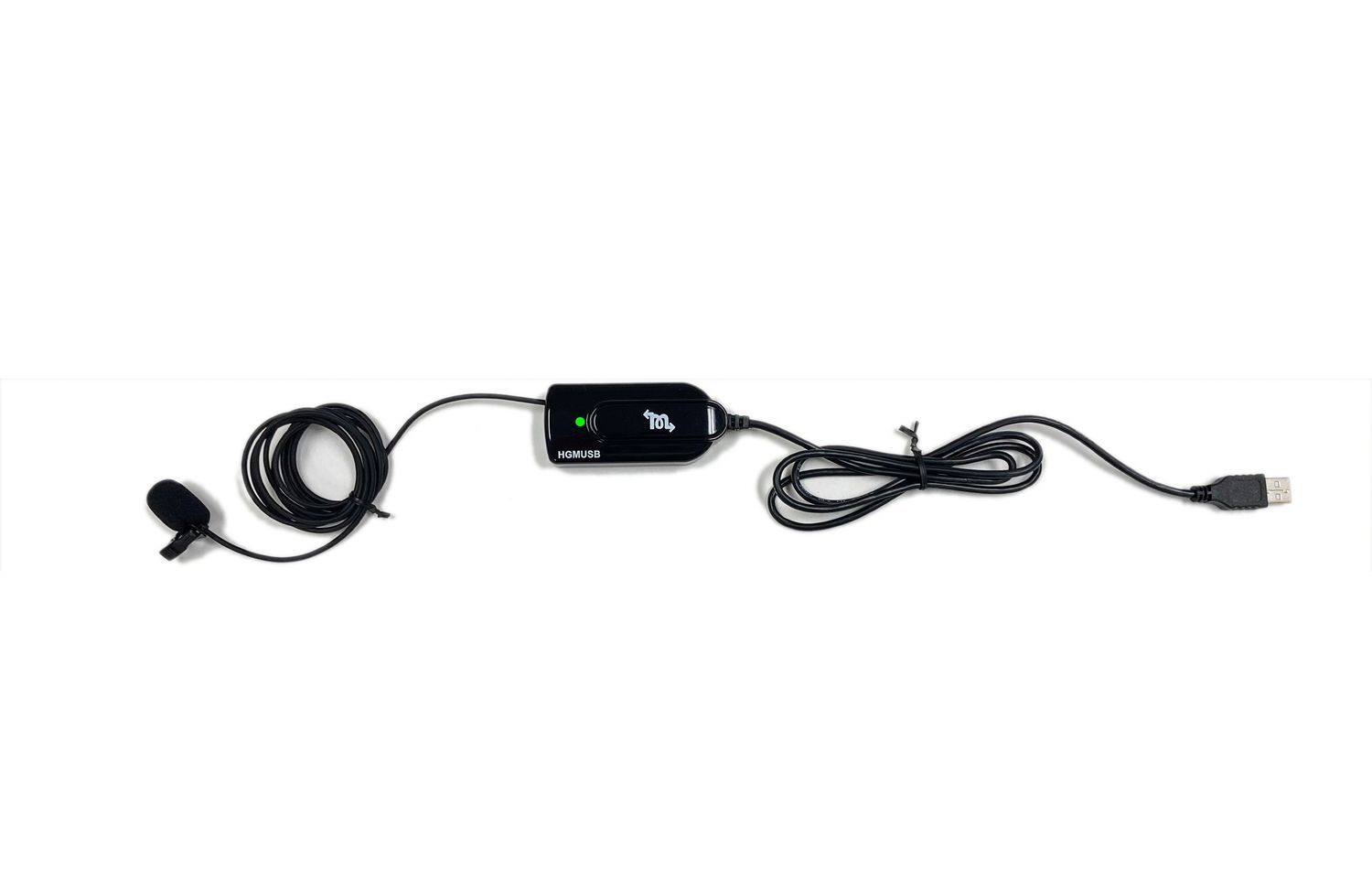
Draw each device that participates in the recording. In one example, an HGM-USB Elite, SKU 1277, uses power from the USB computer connection and supplies microphone audio to a Windows laptop. The charger supplies the laptop. An external display may be connected separately. A set of headphones can be listening at the USB audio system or at a different computer output. Name each connection you actually have. A laptop that gives good results with a microphone plugged directly into it can behave differently when several peripherals are connected through a dock.
Confirm that the computer still selects the intended recording device in each configuration. A dock, display or headset can introduce another audio choice. A change attributed to electrical hum may instead be a change from a closely placed external microphone to a laptop microphone that picks up fan noise. Check the input in Windows and the recording application, and label the speaking positions in the saved file. Moving a meter demonstrates activity at that input. Hearing the intended witness at an expected relative level helps identify the source that made the job recording.
A powered connection can also change the listening side. An output selected through one path may have a different noise experience from the microphone recording entering through another. When a complaint comes in, ask the reporter to name the headset jack or USB output and the file they replayed. The support request then contains two routes to inspect. Buying a new microphone for a noise encountered only at a particular headphone output may leave the original difficulty untouched.
Find out whether an accessory belongs in the comparison
Identify accessories that are necessary for a working rehearsal and those that can be left out using their normal documented connections. Keep the writer and essential recording path in place. If the symptom appears only in the full desk setup, make a separate practice with one optional item changed at a time. Examples could include a nonessential external display or an approved dock that can be replaced by a direct connection supported for that laptop. Do the comparisons outside the active proceeding.
It is useful to distinguish a simple charger from a dock that also provides charging. If the issue begins when the dock is connected, several routes may change simultaneously. Compare the laptop running from its ordinary approved charger with the microphone in its direct supported port against the complete docking arrangement. Record which audio device the application selected in each case. If the direct-charger condition is clean and the dock condition hums, the finding concerns the docking arrangement as a whole. It does not identify any one circuit inside the dock.
Keep a paper row for every combination so a late trial does not erase an earlier useful result. Write the power arrangement, microphone input, listening output, optional accessory and observed result. Mark an unsuccessful attempt to reproduce the tone as such. Support can make use of a set of arrangements that remain quiet as well as the one that consistently produces the noise. The goal is to return the reporter to a working, manufacturer-supported arrangement while identifying the unresolved component for the person qualified to inspect it.
Keep power troubleshooting within the equipment’s normal use
A reporter can document an audio symptom, operate an intact laptop on its own battery for a short controlled test and use the equipment’s approved charger in its intended manner. Leave mains wiring, grounding and internal power supply work to the facility and the appropriate service professionals. Use the manufacturer’s specified power equipment. Preserve protective earth connections and intact plugs. A noise symptom in headphones is insufficient justification for modifying a power cable, ground connection, charger or building outlet.
If the charger or cable is damaged or behaves abnormally in a way that raises an electrical concern, stop using that item and take the question to its service provider. You can still review a practice file on a separate working playback station to establish whether the problem is present in the file. Where a particular room is involved, give the facility the room and workstation identification and a factual account of what happened during normal use. Do not attempt to assess the building’s wiring from the recording.
A battery-only trial is a diagnostic comparison with a beginning and an end. It does not establish that a long assignment can be run on battery, that every charger is faulty or that a grounding issue has been proved. If continuous operation is required, describe the duration and workload to the person supporting the equipment. An alternative setup should be a compatible configuration you have actually rehearsed, with enough power and a verified file for the work. The capacity needed on the day is a separate operational question.