TIME IS RUNNING OUT FOR 2026 TAX WRITE-OFFS

Check meeting audio and saved audio separately

Draw three arrows before choosing equipment. The first goes from your speaking microphone to Zoom. The second goes from the meeting to your headphones or speakers. The third goes from the required source to the place where an authorized recording is saved. A separate backup path may need a fourth arrow. Label what should travel along each arrow and who verifies it.

Path to verifyWhat to observe in the rehearsalExample of a meaningful check
Your outgoing meeting microphoneZoom status and a remote listener's responseThree different phrases at live, muted and live settings
Remote participants arriving at your deskSound at the selected listening deviceA colleague speaks while you check the intended headphones or speaker
Audio saved with a reporting job or in an authorized recordingThe file opened at the actual review destinationReview both named test voices where the capture plan requires them
A separately planned backupSources, power, storage and the saved fileVerify which signals remain available when a dependency is removed in a practice setup

Suppose a two-computer setup has the pedal on the meeting laptop and an audio feed going to the reporting laptop. Zoom's microphone icon reports whether your selected input is being sent to the meeting. It gives no direct readout of the audio saved by the other application. The capture may include remote audio, local sound or both according to the connections and settings. Open a saved sample and compare it to the plan.

In a hybrid room, another participant or room microphone may hear your local voice even when your own Zoom microphone is muted. Treat the microphone status as a statement about the selected client input. Follow the meeting's practice for pauses or private conversations and confirm how each relevant source is handled. Establish who is responsible for the room and recording controls before beginning work.

Martel's Zoom recording kits address other pieces of the route. SKU 403 is a teleconference and recording kit with a listed headphone workflow. SKU 20 describes a speaker monitoring arrangement. Compare their current accessories and supported connections with the devices at your desk. Check the pedal listing and the kit's packing list separately so the order covers the exact controls and audio routes you need.

Diagnose the symptom before changing the setup

The pedal does nothing when tapped

Start with a practice meeting and the normal Zoom microphone button. Check that the computer can operate the microphone control and that the meeting permits the change. Then identify the computer where the pedal is connected. Verify the supplied controller setup and approved USB connection. Test the pedal directly in the normal supported arrangement and note the result before adding a dock or other accessories.

The icon changes and the other participant still cannot hear you

Look at the selected Zoom microphone and the active audio connection. Try a known speaking position and the ordinary Zoom test controls. A laptop input, headset, interface and camera microphone can appear together in the device list. Confirm which one actually receives your voice. Repeat the live phrase with the remote listener after selecting the intended input.

The toggle works only when Zoom is in front

Repeat the test with Zoom visible and then with the usual reporting window active. Check the documented controller and Zoom configuration for that specific behavior. Some Zoom keyboard commands can be global when enabled, and other settings depend on the focused window. Ask Martel about the supported configuration for your pedal. Keep a manual fallback available while investigating.

A tap seems to mute and then unmute

During practice, press once and release fully, then watch the status. If two changes occur, record whether another control, keyboard shortcut or application also acted. Make a fresh attempt using one control at a time. A repeatable observation about one tap is more useful for support than a quick series of taps.

The host has muted you or restricted unmuting

Check the available meeting options and the host's instructions. If self-unmute is unavailable, use the agreed way to request the floor. The meeting's permission applies even when the command comes from a physical pedal. Test the requested permission scenario with the host or another authorized participant before a formal proceeding.

The recording is missing an expected voice

Use a separate nonconfidential capture test and follow the audio path to its destination. Confirm which source the recorder receives, whether it was recording, and where it saved. Review a local and remote spoken sample if both should be present. A functioning mute toggle establishes only one part of the setup.

Use the control during a normal deposition workflow

Before the assignment, confirm the computer and controller connection, intended input, listening device and meeting microphone state. Open the reporting application you will use and check that the pedal still acts as expected. Verify the capture path only within the permission and procedure for the proceeding. Make sure you can reach the ordinary Zoom mute control if the pedal or a cable is unavailable.

During the assignment, use the indicator to check state when the microphone matters. Pay particular attention when coming back from a recess, moving a headset, being muted by a host or using a different window. If the indicator has changed since your last check, treat the current state as the starting point. Confirm it visually before speaking.

Use a simple recovery when the control stops responding. Choose the ordinary Zoom control and confirm the state. Return to the assignment through the agreed procedure. Save troubleshooting for a suitable break or practice meeting. Keep a note of the time, window and visible result if it will help you reproduce the problem later.

At the end, follow the authorized stop and handoff process for each recording. If a permitted capture was made, check the resulting file through the intended review station. Record any unexpected routing or device change, especially when using a borrowed room or different computer. Keep the working connection diagram and the support details with the equipment, separate from confidential job notes.

Decide whether the pedal solves your particular problem

Count the occasions during a representative practice session when you would otherwise have to move a hand or change windows to operate the microphone. Consider where a foot control would sit and whether a second pedal is already there. An operator who repeatedly speaks and returns to writing may value a dedicated control. Another operator may have a supported keyboard routine that already fits the desk.

For the purchase, provide your Windows computer and Zoom client, the number of computers in the setup, your other pedal or controller if any and the required focus behavior. Describe the desk's USB connection and audio route. Request the current supplied contents and confirm how the controller is installed in the supported environment. If an organization manages the computer, coordinate the installation through its normal process.

Accept the setup when you can complete the live, muted and live sample with the same computer and applications used for work, repeat it while the writer and reporting window are active, and use the ordinary Zoom control if needed. Where the job also uses a recorder, confirm what the practice capture saved. Use those observed results to decide whether the control belongs in your everyday equipment kit.

Two desk layouts to test before a remote assignment

A reporting laptop beside a separate meeting laptop

Imagine the meeting computer sits to the reporter's left and the CAT laptop sits straight ahead. The writer connects to the reporting laptop. The reporter normally looks at the CAT screen while writing. Set up the pedal under the writer and route its cable to the left computer. Put the relevant Zoom microphone indicator where the reporter can see it with a brief glance. Keep the cable away from both chair and walker paths and verify that the plug reaches the intended computer without pulling.

For the practice meeting, have a colleague start muted, then unmute and read two ordinary sentences. Confirm that the reporter hears both through the intended listening device. The reporter can then check the live, muted and live sequence. If the reporter's first phrase is heard only after changing the selected input, update the setup note to include that selection. A successful pedal toggle by itself would have missed the input problem.

If the reporting laptop receives an authorized feed, ask a second person to check the saved example after the rehearsal. They should confirm the source voices expected in that file and identify the passage used for each mute state. If a remote phrase is absent, trace its route from the meeting computer to the receiving device. Changing the pedal arrangement is unlikely to answer a missing-feed question.

One laptop with a shared workspace and an external audio device

Imagine the reporter runs the meeting and reporting program on one Windows laptop. The laptop connects to a desk dock, an audio device, a display and the writer. First verify the equipment with its usual connections. Start the test with the meeting window active. Then put the focus in the document, change to the same view normally used for exhibits and check the pedal again. Look for changes in the Zoom icon and any unintended response in the other program.

Next, reconnect the dock through the normal operating procedure. Reopen the test meeting and check the device selections and foot control. If the laptop input replaces the intended microphone, select the correct device and run the recorded phrases again. Note what the reporter needs to confirm after docking. Keep that short instruction close to the connection diagram.

For either desk, ask the colleague to simulate a host restriction in a practice meeting where that is appropriate. The reporter should recognize the restricted state and know how to request to speak. Then return to the ordinary meeting state and verify the toggle. Learning that transition during rehearsal is easier than discovering it while trying to speak on the record.

Leave a quick check for a colleague who takes over

Record the tested device, connection, input and audio output, where the mute indicator appears and which application should receive the command when the reporter is writing. Identify the fallback used in practice. Include a small test phrase set the next operator can repeat. Keep the support contact or authorized installer role with the setup notes, along with the date of the last successful exercise.

Separate open questions from observed behavior. If a different meeting client or remote desktop configuration has not been tested, identify it as a separate compatibility question. This keeps the approved configuration useful without implying that the same behavior applies to every workplace. When the desk changes, repeat the affected check and update the note.

Give the operator a fallback they can recognize without reaching under the desk. For example, bring the meeting window into view and use its ordinary microphone button. Verify the resulting state before resuming. If the operator prefers a keyboard command, check the current shortcut in Zoom's Windows settings and demonstrate it with the reporting program in its usual state. Zoom documents Alt+A as the default mute toggle on Windows. An operator's assigned shortcut can differ. Keep that manual control available whenever the laptop is used from a temporary desk or the pedal is being set up.

After the rehearsal, ask the colleague to tell you exactly which phrases they heard. Note any difference between the visual state and their report. That detail gives you a starting point if a microphone selection or room audio feed needs another check.

Twenty questions about the Zoom mute and unmute foot pedal

What does a Zoom mute and unmute pedal do?

In the supported setup, the pedal changes the microphone mute state in the meeting client. Martel's Windows kit is intended for a tap-and-release workflow. Confirm the visible state after a tap and use a remote listener during setup. The writer, headphones and recording destinations each have their own functions.

How do I mute and then speak again?

When your Zoom microphone is live, tap the pedal once and release it. Confirm that Zoom shows you as muted. When you are permitted and ready to speak, tap again and verify the unmuted state. If another person or control changed your status, use the current indicator as your starting point.

Do I have to hold my foot on the pedal?

The Martel product instructions call for a single tap followed by a release. A later tap toggles the state again. Practice the two separate actions with the indicator visible. Zoom's temporary spacebar unmute uses a different interaction and should be rehearsed separately if you plan to use it.

Which computer should receive the pedal if I have two laptops?

Connect it to the supported Windows computer running the meeting client. The CAT laptop can remain in its normal arrangement for writing or recording. Label both computers and practice the toggle while you look at the writing screen. Check the separate recording workflow using a saved sample.

Can one Windows laptop run both Zoom and my reporting application?

Test the combination you intend to use, including the actual computer, Zoom client, writer and reporting program. Connect the pedal to that computer. Rehearse the control with Zoom visible and with the reporting application active. Confirm that the saved recording path and audio devices also operate as planned.

Can I use the Martel Zoom pedal on a Mac?

The current Martel listing identifies the kit as Windows only. If the meeting is running on macOS or a tablet, look for supported controls for that client and device. Check compatibility before ordering. The Zoom application and the particular pedal controller have separate system requirements.

Will it toggle the microphone when Zoom is behind another window?

Focus behavior depends on the supported controller and client configuration. Rehearse with the usual working window active and observe what happens in Zoom. If the behavior differs with focus, record the details and ask Martel about the approved setup. Keep the ordinary meeting control available as a fallback.

Can the pedal unmute me when the host has restricted it?

The participant's microphone actions are governed by the meeting's permissions. If self-unmute is unavailable, use the procedure the host has provided for requesting to speak. Test that scenario in a practice meeting where appropriate, so you know what the restricted state looks like.

Does the pedal make a Zoom recording?

The pedal kit supplies a microphone control. Set up any authorized meeting or independent recording through the equipment and application intended for that job. Make and open a sample to confirm what is saved. Check audio and file handling separately from whether the toggle works.

Does my Zoom mute state control a separate recorder?

Follow the signal routes in your particular setup. Zoom's status describes its meeting microphone. A separate room microphone, recorder or feed can have its own source and control. In an authorized test, record and review the phrases required for each path, and follow the proceeding's procedure for any private discussion.

Will I still hear the remote participants while I am muted?

Zoom's ordinary microphone mute controls the signal you send. Your listening device and volume are separate. Verify that you hear a remote test speaker through the intended headphones or speakers while muted. If you hear nothing, check the selected audio output and meeting audio connection.

What is the difference between this pedal and a transcription foot pedal?

The Zoom pedal is intended to change a live microphone state. A transcription pedal supplies commands such as play and rewind to a supported review station. Choose the device for the task and test its intended application. At a desk with both, give them distinct positions so each is easy to identify.

What does Martel list in the pedal kit?

The current SKU 132 listing describes a USB foot pedal with a 15-foot cable, controller software, a manual and setup support. Confirm the current contents and compatibility before ordering. The pictured writer and computers illustrate the workflow. Compare separate recording equipment when the job calls for it.

Can I plug the pedal into a dock or hub?

Confirm the supported connection for the kit and test your exact dock or hub. Observe the behavior before and after reconnecting. If the combination behaves differently from a direct supported connection, record the models and the result. Give that information to support instead of changing several settings at once.

What if the muted icon changes but my voice is still missing?

Confirm that you have joined the meeting audio and selected the intended microphone. A remote colleague can tell you whether they hear the live phrase. Inspect the speaking input and the audio device connection. Use the ordinary Zoom control to separate a microphone routing issue from a pedal issue.

Why can I hear a local voice in the room when Zoom is muted?

A person in the room can hear sound directly, and another room microphone may pick it up. Zoom mute concerns the selected input sent by that client. Review the actual room, meeting and capture routes when your assignment requires a private pause. Follow the applicable meeting and recording procedure.

Should I use the same setup for Teams or Webex?

Martel lists those clients as intended Windows uses for the kit. Verify the supported controller setup and actual behavior separately in each application. Meeting permissions, indicators and shortcut settings can differ. Run a practice call with the real client before relying on the pedal in another program.

How do I distinguish an accidental double tap from a failure?

Watch the indicator during a harmless test and press once with a full release. Allow enough time to observe the result. Try the ordinary meeting control separately and check whether another keyboard, software or physical input is also issuing a command. Record the repeatable behavior for support.

What information helps Martel troubleshoot my setup?

Include your Windows and Zoom versions, number of computers, which one receives the pedal, controller setup and the specific observed symptom. Mention whether the normal microphone control works and which window was active. Use a harmless sample when a recording is needed to demonstrate a problem.

How can I tell the setup is ready for a real job?

Complete the live, muted and live test with the usual equipment and application focus. Confirm the permitted way to unmute, the ordinary fallback control and the expected listening device. Where the assignment includes an authorized recording, open the rehearsal file at the receiving workstation. Keep the successful arrangement documented.
Explore equipment for this workflow

Zoom Foot Pedal: Hands-Free Mute and Unmute for Court Reporters

By Martel Electronics · November 11, 2026

Connect the pedal to the Windows computer running Zoom and rehearse a complete mute, unmute and recording check before your next remote deposition.

How the Martel Zoom foot pedal works

Martel's Zoom Mute and Unmute Foot Pedal is a Windows USB control for changing your microphone state in a supported Zoom setup. The current kit listing includes the foot pedal with a 15-foot cable, controller software, a manual and Martel setup support. Connect it to the Windows computer actually running Zoom. When your microphone is on, tap once to mute, then take your foot off. Tap again when you are ready to speak. Check the Zoom microphone icon each time until the behavior is familiar.

This control is especially useful when your hands are on a steno writer or when you are working in another program during a remote proceeding. The saved audio still depends on its own capture path. A writer, CAT program, independent recorder and meeting recording can have different sources. Check each source and destination under the applicable procedure before relying on the setup.

Start by identifying the problem you are trying to solve. A reporter who can hear the remote speakers but repeatedly reaches for the Zoom mute button has a control problem. A reporter whose saved backup omits remote speech has a recording-path problem. A reporter who toggles a microphone successfully but cannot be heard may need to check the selected microphone or the meeting's permission. The pedal gives you another way to operate the mute command in the supported arrangement. Each other task still needs its own test.

Arrange a short practice meeting with a colleague before using the control on a live assignment. Use fictional statements and a known pair of test phrases. Confirm that one gets through when your microphone is on and that the second stays out of the meeting audio when muted. Repeat with your hands in their normal working position and the software you ordinarily use active.

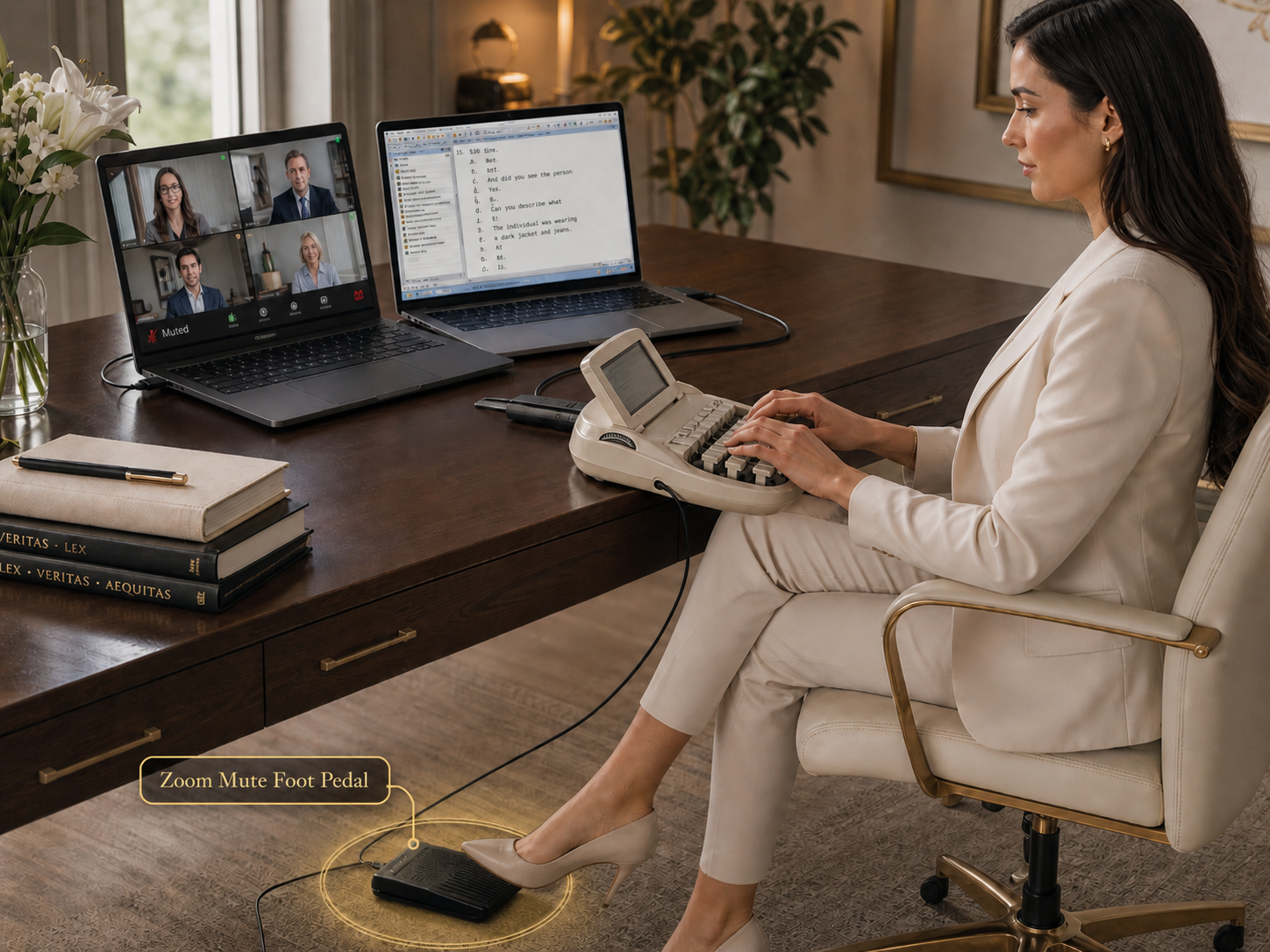
Martel illustration of the Zoom mute pedal in a two-computer court reporting setup
Martel illustration of the Zoom mute pedal in a two-computer court reporting setup. The illustration shows the pedal in use. The writer and computers are setup examples.

Understand a tap toggle and Zoom push-to-talk

A toggle changes the state that is already active. If your microphone is live, the next successful tap turns it off. If it is muted and the meeting allows you to unmute, the next successful tap turns it on. Each tap calls for a deliberate check. If a host changes your status or you click the control with the mouse, the next tap starts from the new state. Count on the visible meeting status instead of trying to remember whether your foot last pressed an odd or even number of times.

Zoom also offers a temporary push-to-talk feature on supported clients. In the documented desktop workflow, the user enables the setting and holds the spacebar while the Zoom window has focus. Releasing the key ends the temporary unmute. That feature can be useful for brief contributions. The Martel product instructions describe a tap-and-release toggle. Use the control style supported by the actual setup and verify the result with the meeting's microphone indicator.

The Zoom Windows desktop client also documents a keyboard command for toggling mute. Some Zoom commands can be configured to work when Zoom is out of focus. Those application features are relevant when choosing a manual fallback. The pedal's controller configuration should follow the instructions for the supplied model. Ask Martel how to configure it for your environment instead of assuming that a particular keyboard mapping or focus behavior comes preselected.

Host controls matter in a rehearsal. If the host prevents participants from unmuting themselves, use the meeting's approved request or unmute process. A foot control cannot change the permission granted to a participant. Agree in advance how the reporter should ask to speak if the meeting restricts microphones.

Zoom describes its microphone controls and temporary push-to-talk behavior in its official help. Confirm the controls in your own client because settings and available options can differ.

Put the control on the meeting computer in a two-computer setup

Label the laptop running Zoom as the meeting computer. Label the laptop that runs Case CATalyst, Eclipse or another program as the reporting computer. In this arrangement, the pedal connects to the Windows meeting computer. It controls the meeting there. Identify separately where your writer, microphone, headphones and any supported recording feed connect. A tidy diagram with a line for each device makes the setup easy to rebuild at another desk.

Run a rehearsal with the writer and the reporting application in their usual places. Check that the meeting participant can hear your speaking microphone while Zoom is unmuted. Tap to mute while keeping your hands on the writer. Ask the participant to indicate whether the second practice phrase was audible. Check the visual state, then tap to return to speaking and confirm the third phrase. Keep the practice sample and notes free of case details.

Walk the capture path separately. A court reporting kit may route meeting audio to headphones and a compatible writer or recording device. Depending on the arrangement, the voice you send to the meeting and the voices you hear can travel through different routes. Check your saved sample to see what it contains. If it is intended to include remote speech, use a remote test speaker and verify their words at the recording destination.

Use both computers in the rehearsal. Some desks have a shared dock, a USB switch or a movable keyboard cable. The operator can accidentally connect the pedal to the reporting computer or move the cable during packing. Make the physical route easy to identify and recheck after any change. A small label at both ends of the cable can help another operator connect the same system accurately.

When your meeting computer changes, review the whole working combination again. The version of Zoom, Windows settings, controller configuration and USB connection may differ. Keep a one-page record with the model and tested arrangement. A spare meeting computer is ready when it can run the authorized rehearsal, including the microphone state and audio output checks.

Test focus and device selection on one Windows computer

In a one-computer arrangement, Zoom and the reporting software share a workstation. The pedal connects to that same computer. Open Zoom and your usual reporting program, then put the cursor where it normally sits when you work. A good test reflects that real window state. A mute command that works while Zoom is the only active window has passed only one condition of the rehearsal.

Begin with the meeting application visible. Confirm the selected microphone using the normal meeting controls. Speak a test phrase while unmuted and observe the microphone indicator and remote participant's response. Operate the foot pedal and verify the changed state. Switch focus to the reporting program, leaving the meeting running. Repeat the toggle and check whether Zoom receives the intended control and whether the reporting program reacts to it.

If behavior changes when a different window is active, write down which window had focus, what the Zoom indicator did and whether another application reacted. Follow the documented setup for the pedal controller and the meeting client. Review any supported shortcut setting with Martel before changing unrelated controls. Keep a fallback you have actually used during a practice meeting, such as the ordinary microphone button in Zoom.

Confirm the microphone and playback devices again after switching a dock, headset or USB audio interface. The pedal can change mute state even if the selected microphone is the laptop's built-in input. A remote participant can help identify which source is really being heard. Set up a brief comparison without moving other parts of the system, then keep the accepted selection with the desk notes.

Also open and verify an authorized saved sample from the path used for the assignment. On a single computer, it is easy to conflate the application that sends the microphone signal and the one that saves audio. Identify the application, file location and source in the test. A practice capture should demonstrate what you expect to retrieve later.

Place the pedal where a deliberate tap is easy

Set the chair and writer where you normally work before placing the pedal. Put it within comfortable reach and far enough from your resting foot that shifting your position does not press it accidentally. Check the floor surface and use the supplied placement guidance. Keep the cable clear of wheels and walkways and leave enough slack for normal movement at the desk.

The listed cable length is useful when the Zoom laptop sits farther away, but the usable route depends on the furniture. Measure around the desk and along any approved cable route. Confirm that a connection is accessible before laying everything out. If you need a dock, hub or adapter, use a supported arrangement and include it in the rehearsal. A setup that works when the pedal is plugged directly into a laptop may behave differently after the cable path changes.

When another pedal is already present, give the two controls distinct positions. The meeting pedal changes whether remote participants hear your microphone. A transcription pedal operates playback in compatible software. An AudioSync pedal can serve a separate CAT playback command. Use a simple desk cue that identifies the live meeting control by feel or position and repeat the rehearsal with both controls present.

Practice the whole motion: tap, release, confirm. Keep it slow enough at first to see the state change. A repeated tap can undo the first change. If the display seems slow to respond, check the status and wait for the result before tapping again. A brief pause to look at the indicator is part of learning a dependable routine.

For travel, pack the pedal so the connector and cable are protected. At the new desk, reconnect it to the correct Windows computer and do the same three-phrase test. Then verify the required recording path. The test is small enough to repeat and specific enough to reveal a wrong computer connection or changed device selection.

Use a rehearsal with an observable result

Invite one colleague into an authorized test meeting. Ask them to listen and report the phrases they hear. Keep the equipment and software arranged as they will be for an assignment. Start with Zoom's microphone status visible, then move your attention to the writer and reporting screen as you would during normal work.

  1. Join audio and select the intended microphone and listening device. Use Zoom's ordinary microphone control once so you have a tested fallback.
  2. With the microphone live, say “Test one, the meeting is open.” Have the remote listener repeat back what they heard.
  3. Tap and release the pedal. Confirm the muted icon. Say “Test two, muted sample.” The listener should report that this second phrase did not come through the meeting.
  4. Tap and release again. Confirm the unmuted state and say “Test three, ready to continue.” Have the listener repeat the phrase.
  5. Move focus to the reporting application and repeat with three different harmless phrases. Record which window was active and whether the expected result occurred.
  6. If the setup includes an approved capture, stop and save it through its own workflow. Open the actual file at the destination where it will be reviewed.

These steps deliberately use different phrases. Hearing the first and third confirms two separate periods when the microphone was live. The second checks the moment you expected the signal to be muted. A single thumbs-up from the remote participant would be ambiguous because it could refer to the first sample only.

Leave a short record of the test, including the computer that received the pedal, Zoom client used, selected microphone, placement and any focus behavior observed. If the participant had to allow you to unmute, note that condition. This is a rehearsal result for your configuration. It gives a new operator a specific procedure to repeat.

Martel Electronics | 3 hours ago

Zoom Foot Pedal: Hands-Free Mute and Unmute for Court Reporters

Connect the pedal to the Windows computer running Zoom and rehearse a complete mute, unmute and recording check before your next remote deposition.

First paragraph

Use this space to develop your idea and move the story forward. Add details, examples, or observations that make your point clearer. Keep each paragraph focused around one idea. Add more sections to build your story step by step.

Martel Electronics

More Posts

How Quiet Is a Stenomask? Sound Leakage and Fit EvaluationHow Quiet Is a Stenomask? Sound Leakage and Fit Evaluation
How Quiet Is a Stenomask? Sound Leakage and Fit Evaluation

An original guide to checking what listeners and outside microphones hear. Includes room planning, fit observations, measurement limits, and practical worksheets without invented sound-reduction claims.

Stenomask Accuracy: How to Measure Speech Recognition ResultsStenomask Accuracy: How to Measure Speech Recognition Results
Stenomask Accuracy: How to Measure Speech Recognition Results

Learn how to separate microphone capture, speech-recognition errors, and correction work. Includes an original evaluation process, practice text, and worksheets for comparing complete stenomask setups.

Marantz PMD661 and PMD620 Replacements for Court ReportersMarantz PMD661 and PMD620 Replacements for Court Reporters
Marantz PMD661 and PMD620 Replacements for Court Reporters

Use your existing recorder setup to decide which connections, recording functions and review controls a replacement has to support.

Phantom Power for Courtroom Microphones: A Practical 48V Setup GuidePhantom Power for Courtroom Microphones: A Practical 48V Setup Guide
Phantom Power for Courtroom Microphones: A Practical 48V Setup Guide

Identify which device powers each microphone, confirm the supported connection, and verify the complete recording path before work.

Microphone Splitter vs. Mixer: Plan the Right Court-Reporting Audio PathMicrophone Splitter vs. Mixer: Plan the Right Court-Reporting Audio Path
Microphone Splitter vs. Mixer: Plan the Right Court-Reporting Audio Path

Identify the sources, destinations and channel separation you need before choosing a splitter, mixer or USB interface.

Stenomask USB Sound Cards: Andrea USB-SA vs. Sound Blaster PLAY! 3Stenomask USB Sound Cards: Andrea USB-SA vs. Sound Blaster PLAY! 3
Stenomask USB Sound Cards: Andrea USB-SA vs. Sound Blaster PLAY! 3

Match the adapter to the mask, computer and application, then verify the complete microphone path with a saved recording.

DM4 vs. DM246: Choosing a Four-Channel Courtroom Recording SystemDM4 vs. DM246: Choosing a Four-Channel Courtroom Recording System
DM4 vs. DM246: Choosing a Four-Channel Courtroom Recording System

Choose the recording workflow that fits your team, then compare complete microphone packages and verify the saved files through transcription review.

Digital Court Reporting Equipment: A Complete Recording and Transcription SetupDigital Court Reporting Equipment: A Complete Recording and Transcription Setup
Digital Court Reporting Equipment: A Complete Recording and Transcription Setup

Build a complete recording-to-transcription workflow. Compare equipment roles, map the room, and verify the saved result before accepting a system.

Martel Video Transcriber Kit or Software Only: Choose the Right SetupMartel Video Transcriber Kit or Software Only: Choose the Right Setup
Martel Video Transcriber Kit or Software Only: Choose the Right Setup

Compare Martel SKU 1515 with pedal and headset against SKU 1527 software with two licenses. Choose the setup that matches the equipment you already own.