TIME IS RUNNING OUT FOR 2026 TAX WRITE-OFFS

When a Courtroom Monitor Takes the Sound From Your Laptop

A courtroom display can show a perfectly clear picture while the court reporter hears no playback from the laptop. That result does not necessarily mean the recording is silent or the speakers have failed. Connecting a display can add another Windows 11 playback destination, and Windows or an application may send sound to that destination. The right response is to identify the current route, use harmless reference audio, and keep playback observations separate from recording observations.
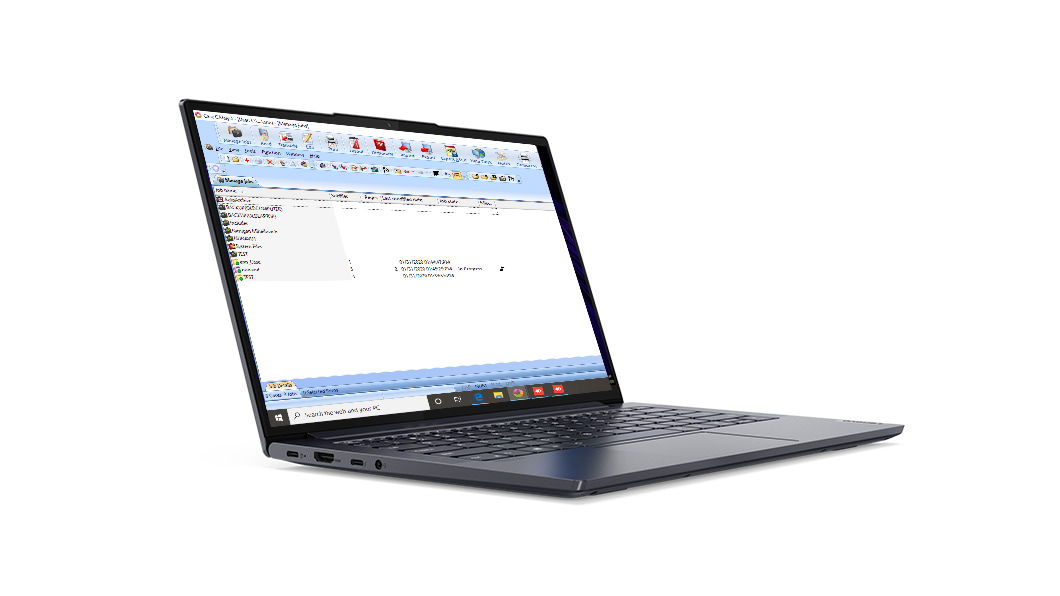
Elite Court Reporter Laptop from the Martel gallery on a white backdrop

This guide uses an invented three-state rehearsal: before a courtroom monitor is connected, after it is connected, and after the intended listening route is restored. The exercise records the selected Windows output, the place sound is actually heard, whether the display carries sound, and whether a newly saved practice recording can still be reopened and played.

All names, device labels, phrases, rooms, times, files, and results in the worked example are invented and illustrative. They do not describe a customer, courtroom, deposition, or actual technical result. Use approved training material, follow the court’s rules and the organization’s procedures, and obtain authorization before connecting to equipment you do not own or control.

Start with four separate questions

“The monitor took the sound” is a useful symptom report, but it combines several questions. Separate them before changing settings:

  1. Which Windows output is selected? This is the playback destination Windows currently presents as the main output.
  2. Where is sound physically heard? It may come from the laptop, wired headphones, the connected display, a room system, or nowhere audible to the reporter.
  3. What did the application use? An application can have its own remembered output or a per-application route in the Windows volume mixer.
  4. Does the saved practice recording contain sound? A playback-route problem can make a good recording seem silent at one listening position.

Keep a separate answer for each question. A selected device name is not proof that sound reached that physical location. Hearing a Windows alert is not proof that the reporting application uses the same destination. A silent display is not proof that the saved file is silent.

The neighboring Martel laptop-jack microphone and headphone guide separates microphone capture from headphone playback at a combination jack. This guide addresses a different change: what happens to playback when a courtroom display becomes another possible audio endpoint.

Use only harmless practice audio

Do not diagnose a new courtroom route with testimony, an exhibit recording, a confidential call, or a client file. Prepare two harmless cues:

  • Known playback cue: “Slate Harbor twenty-six; the final word is lantern.” Save it in an approved practice file before the display test. Confirm it can be heard through a known route.
  • New capture cue: “Copper Bench forty-one; the final word is meadow.” Record this only in an empty training job or approved recording application during the rehearsal.

The color words, numbers, and different final words make the files easy to identify. They also prevent an older success from being mistaken for the current result. A person checking the file can write down the number and last word before seeing the answer card.

The exercise should not include a real case caption, participant name, date of proceeding, protected form, account, address, or production file. Close real work before changing connections. If the display is in a public or shared room, make sure the test picture and sound are suitable for anyone who may see or hear them.

Record the equipment by function

List the pieces in front of you without assuming what any connection will do:

  • Martel Elite Court Reporter Laptop used for the harmless exercise;
  • courtroom monitor or display;
  • the supported display cable, adapter, or dock actually being tested;
  • the intended private or room listening route;
  • the reporting or recording application used for the practice job;
  • one independent listening route that has already played the known cue;
  • the operator and, if allowed, a second observer who can report what the display does.

Write the device labels exactly as they appear on the equipment and in Windows. Do not replace an unfamiliar label with a guess. “Output 2,” a display brand, or a generic audio name may be inconvenient, but the exact wording gives support something concrete to compare.

Describe the required workflow and the connections in the current written order. The durable question is whether the current Martel laptop package and the actual room connection provide the supported display and listening workflow required for the assignment. The Elite Court Reporter Laptop product page carries the current package details.

Understand why the picture and sound can separate

A supported display connection can make a second picture available and may also present an audio destination. These are related capabilities, not one combined proof. The picture can work while the selected audio endpoint is silent, muted, unavailable to the reporter, or connected to a display without usable speakers.

The physical display matters. Some displays have speakers. Some have an audio output but no speakers. Some accept a picture while the room’s sound system is managed elsewhere. A courtroom may deliberately prevent a laptop from driving room audio. The display connection alone does not authorize changing the room system.

Windows 11 shows playback choices under Settings > System > Sound. In the Output section, the operator can identify the selected device. A display connected through a supported route may appear in that list. Microsoft also provides a volume mixer where individual applications can have their own sound levels and, in some configurations, their own output selection.

Read the current controls rather than memorizing a device name from another room. A different display, adapter, dock, cable path, or Windows session can produce different labels. Record what appears today and connect it to a physical listening observation.

Create the three-state sound log

Use one row for each state and one column for each fact. Blank means not yet observed, not “no.”

State Display connection Selected Windows output Where known cue is heard Does display carry sound? New practice recording reopens and plays?
A: before display Disconnected Not connected
B: display connected Connected
C: intended route restored Connected or final approved state

Add columns if the application has its own output selector, a room technician controls the audio system, or headphones are part of the approved workflow. Do not collapse those responsibilities into one comment such as “sound fixed.”

The log is an acceptance record for this arrangement. It is not a promise that every courtroom monitor behaves the same way. Keep the connection path, Windows label, application name, test cue, and result together so another person can repeat the same check.

Give each output an evidence card

Windows can list several destinations whose names do not tell the whole story. Make a small card for every output that might be used. The card should contain the exact Windows name, the physical location it appears to control, the harmless cue used, the observer who checked it, and the date of the observation.

For example, an illustrative card might say:

Windows name: Courtroom Display Audio. Physical location: wall display at witness side. Known cue: Slate Harbor twenty-six / lantern. Observer result: picture present, no audible cue at reporter or display position. Date: invented training date.

That card does not say the endpoint is defective. It records one result under one arrangement. A separate card for Wired Headphones might show that the same cue was recovered at the reporter position. When a name changes after a dock or display is replaced, create a new card instead of writing over the older observation.

Keep the cards with the connection map. A substitute reporter or support technician can then match the Windows list to physical equipment without relying on the original operator’s memory. Do not attach confidential screenshots or a list of unrelated personal devices.

State A: establish the baseline before connecting the monitor

Close the reporting application or place it in an empty training job. Leave the courtroom display disconnected from the laptop. Open Settings > System > Sound and write the selected output name in the State A row.

Set the listening level low. Play the known Slate Harbor cue. Identify the physical source by observation. If the sound is supposed to come from wired headphones, briefly lift them away without placing private sound into the room. If it is supposed to come from the laptop, place yourself at the ordinary working position and confirm the cue’s number and final word.

Record what happened, not what should have happened:

Selected output: Laptop speakers. Heard at: laptop position. Cue recovered: twenty-six / lantern.

That sentence is illustrative. Use the actual Windows label and actual result in the real test. If State A does not produce dependable playback, stop and establish a known listening route before adding the display. Otherwise, a silent State B will contain two unresolved variables.

Next, make the Copper Bench practice recording in an approved empty job. Stop normally, save, close, reopen, and play it through the confirmed State A route. Record whether the number forty-one and final word meadow are recoverable. This gives the exercise a current saved file, not just an old reference.

The recording step does not prove which physical microphone captured the cue unless that is tested separately. Its job here is narrower: to create a harmless, identifiable file whose contents can be checked after the output route changes.

Photograph or sketch the baseline connection map

A simple connection map prevents the test from becoming a memory contest. Draw the laptop, display, cable or adapter, headphones if used, and any room-system boundary. Label the direction of the picture and the possible direction of playback.

Do not draw a line into the courtroom sound system merely because a display is mounted on the wall. Ask the authorized room contact how sound is intended to be handled. If the operator is permitted to connect only the display cable, keep the map within that boundary.

Take a harmless equipment photograph only if the room rules allow it. The photograph should show connectors and labels, not screens containing court information, people, security details, badges, or documents. A written sketch is often enough.

State B: connect the display without playing sound first

Pause all playback. Connect the courtroom monitor through the approved connection path. Wait for Windows to detect the display. Confirm the intended picture with a harmless test page before opening the known audio file.

Return to Settings > System > Sound. Write every relevant output name that has appeared and mark the one currently selected. Do not immediately switch it. The first observation answers whether the connection changed the selected endpoint.

Check the display itself:

  • Does it have visible speaker openings or a documented audio function?
  • Is there a physical volume control or mute indicator?
  • Is a room technician responsible for it?
  • Is a headphone or audio-out socket present but not part of the approved setup?
  • Does the display show a picture while Windows lists it as an audio destination?

The final question is especially useful. A listed endpoint does not establish that the reporter can hear it. Record listed, selected, and audible separately.

With the Windows level low, play the known Slate Harbor cue. One observer should remain at the reporter position. If the room procedure permits, another observer can stand near the display and report whether any sound is present. Do not walk away from the laptop while confidential applications are open; the rehearsal should contain only training material.

Record one of these factual outcomes or another precise observation:

  • cue heard from laptop, not from display;
  • cue heard from display, not from laptop;
  • cue heard from the approved headphones;
  • cue heard from more than one location;
  • cue not heard at the reporter position, but recovered after selecting a confirmed route;
  • cue not heard anywhere tested, with the selected output and mute state recorded.

Avoid the conclusion “the monitor stole the sound.” A better note is “after connection, Windows selected the courtroom-display endpoint; the picture worked; the known cue was not audible at the reporter position.” That description preserves the evidence without guessing why.

Prove the saved file independently

If the known cue becomes silent in State B, do not modify the recording input. The Slate Harbor file was already confirmed to contain sound. First return playback to the independently verified route and confirm the same file still says twenty-six and lantern.

Then open the newly saved Copper Bench practice recording. Play it through the confirmed route and listen for forty-one and meadow. This distinguishes three possibilities:

Observation What it supports What remains open
Both known and new cues play on a confirmed route The files contain the expected practice sound Why another output was silent
Known cue plays, new cue does not Playback route works for the reference Capture, save, file identity, or current application result
Neither cue plays on the current route, but both work on the independent route Current playback destination is the immediate difference Display endpoint, mute, level, application route, or room boundary
Neither cue works on any permitted route The listening reference is not established File identity, playback application, outputs, or a wider technical issue

Do not treat this table as a diagnosis. It controls the order of observation so a silent speaker does not become a false claim about the recording.

Check the application route and Windows volume mixer

System sounds and a reporting application do not always follow the same visible path. Open Settings > System > Sound > Volume mixer using the current Windows 11 interface. Locate the practice application while it is running. Record whether it is muted, its volume level, and any output route shown for that application.

Use the known cue in the same application if the approved workflow permits. If the application has its own audio settings, record the selected device name there too. A player may remember a destination that is no longer connected, or it may continue using an endpoint chosen before the display was attached.

Change one setting at a time. After a change, replay the same known cue before making a new recording. Use a fresh Copper Bench marker only when the question returns to capture or save behavior. This keeps playback and recording evidence separate.

If a browser, meeting program, media player, and reporting application are open together, close everything not required for the rehearsal. Multiple programs can produce competing sound and make it difficult to identify the source. A clean practice session is easier to explain to support.

Use a second observer without giving away the answer

When room rules permit, a second authorized person can make the result more dependable. Give the observer a blank form with three fields: location heard, number heard, and final word heard. Do not show the answer card first. The operator plays the Slate Harbor cue once at low level, and the observer records what was actually heard.

Move the observer only to positions included in the approved plan. A witness-side display position, reporter position, and doorway may have different audible results. Mark not tested for any position that cannot be checked. Do not convert it to silent.

Repeat with the Copper Bench file after it has been reopened. If the observer reports the old number while the operator believes the new file is playing, stop and verify file identity. This simple mismatch can reveal that an earlier recording or another application remains active.

The observer should not change Windows settings. One person operates the computer while the other records the physical result. That division makes the sequence easier to reconstruct and reduces the chance that two settings change at once.

State C: restore the intended listening route

Choose the output required by the approved setup. It may be the laptop speakers for a private room check, wired headphones for individual monitoring, or an authorized room-audio endpoint managed with a technician. The guide does not prescribe one route for every assignment.

Play the Slate Harbor cue and record where it is heard. Then play the reopened Copper Bench file and record the number and final word. If the monitor remains connected, confirm that the picture still works while playback reaches the intended destination.

An illustrative State C result might read:

Display connected. Windows output restored to wired headphones. Slate Harbor twenty-six / lantern and Copper Bench forty-one / meadow recovered in headphones. No sound intentionally sent to the courtroom display.

This is an invented example, not a claim about a Martel laptop or a particular display. The real record must contain only observed results.

Disconnect and reconnect the display once if that transition is part of the normal assignment and the room owner authorizes it. Repeat the output-name and known-cue check. Windows may remember a prior route, but memory is not guaranteed across every display and connection path. The acceptance test should cover the actual transition the reporter expects to make.

Keep room playback and private monitoring separate

Courtroom sound can affect more than the reporter. A cue sent to room speakers may be heard by participants, interpreted as part of a proceeding, create feedback, or disclose audio that was meant for individual listening. The rehearsal should begin with a low level and harmless words. Do not test with live microphones open unless the authorized plan specifically requires that route.

If the purpose is private confidence monitoring, state that requirement in the plan. If the purpose is to let the room hear an approved clip, identify who authorizes playback, who controls the room level, and who confirms the clip is the intended one. These are different workflows even when they use the same computer.

A reporter should not use headphones as proof that the room hears the same signal, and should not use room speakers as proof that the private monitoring route works. Give each audience its own observation.

When the display is supposed to carry sound

Some assignments intentionally use the display or an approved room endpoint for a harmless presentation clip. Add a fourth state rather than replacing the private-monitoring record. Label it State D: authorized room playback.

Before that pass, identify the approved clip, the person who authorizes playback, the person who controls the room level, and the stop action. Start with the invented Slate Harbor cue. The observer at the intended listening position records the number and final word. Another observer checks that the level is not unexpectedly present in a restricted area if that check is part of the room plan.

End the clip and return to the required final state. Confirm that the output did not remain on the room endpoint when the reporter expected private listening. Reopen the harmless Copper Bench recording through the intended private route and record the result.

Do not treat successful room playback as permission to play case audio. The acceptance result covers the training cue, the approved connection, and the observed positions only. Content approval remains a separate decision.

Include a remote meeting only when it is part of the assignment

A remote meeting adds its own speaker and microphone selections. Connecting a courtroom monitor can change the Windows default while the meeting application retains another output. The remote participant’s incoming voice, the reporter’s saved recording, and local playback are separate paths.

For an approved practice meeting, use a second authorized device and harmless speech. Record:

  • Windows selected output;
  • meeting speaker selection;
  • where the remote cue is heard in the room;
  • meeting microphone selection;
  • whether the local practice recording contains only the intended source;
  • whether ending the meeting changes the local output.

Do not infer that a remote participant heard a clip because it played through the courtroom display. The application may send shared computer sound through a separate control, or may not send it at all. Verify the remote result from the remote side using the meeting application’s supported procedure.

Test ordinary transitions, not abusive ones

An acceptance rehearsal can cover the normal actions expected during work:

  • start with the monitor disconnected;
  • connect it before opening the training job;
  • select the approved playback route;
  • play the known cue;
  • close and reopen the practice file;
  • disconnect at a planned break;
  • reconnect and repeat the cue;
  • restart Windows if a restart is genuinely part of the support procedure.

Do not repeatedly bend connectors, pull a cable sideways, force a loose plug, or rapidly connect and disconnect equipment to provoke a fault. If an ordinary movement coincides with an intermittent result, note the time, file, playback position, selected route, and equipment state. Preserve the harmless sample for support.

Build a support note from observations

A useful support note can fit on one page:

Field Entry
Date and local time
Laptop product family Martel Elite Court Reporter Laptop
Windows version shown Windows 11 release information as observed
Display label
Connection path
State A selected output and result
State B selected output and result
State C selected output and result
Application and selected route
Known cue recovered
New saved cue recovered
Disconnect/reconnect result
Unresolved question

Include a screenshot of harmless Sound settings only if requested and permitted. Crop or redact account names, meeting information, notifications, file names, and unrelated devices. A typed device label and a clear three-state log may be safer and more useful than a full desktop screenshot.

The support note should avoid conclusions such as “bad sound card” unless an authorized technician has established that finding. State what changed and what still worked.

Choose equipment by the required workflow

The display-audio rehearsal belongs in the receiving test when a court reporter plans to use a courtroom monitor, presentation display, dock, adapter, or private listening device. The buyer should describe the intended arrangement to Martel, including who needs to hear playback and whether the display is expected to carry sound.

The current Court Reporter Laptops category provides the relevant Martel laptop choices. The exact included connections and accessories belong to the current product listing and written order. The acceptance method stays focused on the observable display and sound route so it remains useful as the available computer models change.

Final acceptance checklist

Before relying on the arrangement, confirm and record:

  • real work was closed and harmless cues were used;
  • the display connection was authorized;
  • State A produced a known playback result;
  • the Windows output name was recorded before connection;
  • the output name was recorded after connection;
  • the physical sound location was checked instead of assumed;
  • the display’s actual sound capability and room boundary were identified;
  • application-specific output and mute controls were checked when relevant;
  • the new practice recording was stopped, saved, reopened, and identified;
  • the known and new cues were checked on an independent route;
  • the intended final playback route was restored;
  • the picture still worked in the approved final arrangement;
  • room playback and private monitoring were treated as separate requirements;
  • an ordinary disconnect/reconnect was tested if the workflow uses it;
  • unresolved observations were recorded without a fabricated diagnosis;
  • the planned setup meets the court’s instructions and the organization’s approved procedure.

Questions and answers

1. Why can connecting a courtroom monitor make my laptop seem silent?

The connection can add another Windows playback destination, and Windows or an application may select it. The picture and the audio route are separate observations. Open Windows 11 Sound settings, write down the selected output, and play a harmless known cue at low volume. Record where the cue is physically heard before changing anything.

2. Does a courtroom monitor always have speakers?

No. A display may have speakers, an audio output, neither, or an audio function controlled by the room system. Inspect the actual display and ask the authorized room contact. A device appearing in the Windows output list does not prove that it has audible speakers available to the reporter.

3. Can the picture work even when I hear no audio?

Yes. A working picture proves that the display path is carrying the image required for that state. It does not prove that Windows selected the intended playback output, that the display can reproduce sound, or that its volume is audible. Test audio separately with a known practice cue.

4. Should I test with a real courtroom recording?

No. Use an approved training file with invented words and numbers. Real testimony or client audio can create privacy, disclosure, and record-integrity problems. The Slate Harbor and Copper Bench phrases in this guide are illustrative cues designed to make the current file easy to identify.

5. Where do I find the selected output in Windows 11?

Open Start > Settings > System > Sound and look in the Output section. Record the exact selected name. If one application behaves differently, open the Windows volume mixer and the application’s own audio settings, then record those selections separately.

6. Why does the output have an unfamiliar name?

Windows may show a display, driver, adapter, dock, or generic endpoint label rather than the name you use for the room. Do not rename it in your notes from memory. Copy the label as shown and connect it to a physical observation such as “cue heard from wired headphones.”

7. Does a supported display cable guarantee that the monitor will play sound?

No. The complete route includes the laptop, connection path, selected Windows endpoint, display capability, mute and volume state, application choice, and room controls. Verify the actual arrangement. A cable capability alone does not establish the final audible result or authorize use of room speakers.

8. What should I do if Windows selects a display that has no usable speakers?

Pause playback and select the approved output, such as the intended headphones or laptop listening route. Replay the harmless known cue and record the result. If the display remains listed, that is not necessarily a fault; the important question is whether the final approved route works consistently.

9. What is the difference between an input and an output?

An input is the source an application uses to capture sound, such as the intended reporting microphone. An output is where playback is sent, such as headphones, laptop speakers, or an approved display endpoint. Changing a playback output should not be treated as proof about the microphone input.

10. Can the monitor connection erase or damage my saved recording?

Selecting a different playback endpoint does not by itself prove that file contents changed. Confirm the file on an independent listening route. Identify the cue, stop and reopen the file, and preserve the original. If the file fails on every permitted route, document that broader result without assuming the monitor caused it.

11. Why do Windows sounds work while my reporting application stays silent?

The application may be muted, assigned to another output, or using a remembered device. Check the Windows volume mixer and the application’s own playback controls. Use the same known practice file after each single change so the comparison is meaningful.

12. What should I record from the Windows volume mixer?

Record the application name, whether it is muted, its displayed volume, and any application-specific output selection. Do not copy unrelated application or account information. The purpose is to show whether the silent program follows the main Windows output or a separate route.

13. Can a dock or adapter change the sound-route result?

It can change which endpoints Windows detects or how the display is connected. Treat the dock or adapter as part of the tested connection path. If it changes, repeat the three-state log rather than assuming the result from a direct connection still applies.

14. How do I verify private headphone playback?

Use a harmless known cue at low level. Confirm the final word in the headphones and check that room speakers or the display are not also reproducing it. Record the exact Windows and application selections. Do not use private case audio as the test.

15. What changes when a remote meeting is also open?

The meeting application can have its own speaker and microphone choices. Record those separately from the Windows default. Verify incoming remote speech from an authorized second device and confirm what the remote participant receives. Local display playback does not prove that shared meeting audio reached the participant.

16. Why is room playback a privacy decision?

Sound from room speakers can reach participants, hallways, microphones, cameras, or a proceeding record. Identify who authorizes room playback and use only harmless material during setup. Private monitoring and room presentation are different requirements even if they begin on the same laptop.

17. How can I reduce the chance of feedback during the test?

Begin with low output, keep unnecessary microphones and meeting paths closed, and use the authorized room procedure. Do not place a live microphone beside an active speaker merely to see what happens. If the workflow requires room reinforcement, involve the person responsible for the sound system.

18. Is a tone enough for the rehearsal?

A tone can show that some sound is present, but a short spoken cue is easier to identify across saved files and listening positions. Use a color, number, and final word. Ask the observer to report the number and last word before seeing the answer card.

19. Why use three states instead of testing only after connection?

The baseline shows what worked before the display appeared. State B records the immediate change. State C proves the intended final route after correction or selection. Without those comparisons, a successful or silent result can be attributed to the wrong connection, file, or setting.

20. Should I test disconnecting and reconnecting the monitor?

Yes, if that ordinary transition is part of the planned assignment and the room owner permits it. Pause playback, perform the normal connection change, record the selected output, and replay the known cue. Do not repeatedly stress a connector or cable to provoke a fault.

21. Should I restart the laptop during the acceptance test?

Only when a restart belongs to the approved setup or support procedure. Save and close the practice job first. After restart, record the output name and repeat the known cue. A result before restart does not automatically prove what Windows will select afterward.

22. When should I use the Windows audio troubleshooter or seek technical support?

Use the current supported troubleshooting route when the intended device is missing, disabled, or still unusable after the simple route checks. Preserve the three-state log first. It tells support what Windows displayed, what was audible, and whether the known files worked elsewhere.

23. What information is most useful in a Martel support request?

Include the Martel product family, Windows version shown, display label, connection path, exact output names, application name, State A–C results, known-cue result, new saved-cue result, and any ordinary disconnect/reconnect observation. Use harmless screenshots only when requested and permitted.

24. What is the final pass condition?

The approved picture arrangement works, the intended playback route is explicitly selected and physically verified, the harmless known cue and reopened new practice recording are recoverable, and the result survives the normal transition required by the assignment. Any unresolved room-audio or application route remains documented for the responsible reviewer.

Martel Electronics