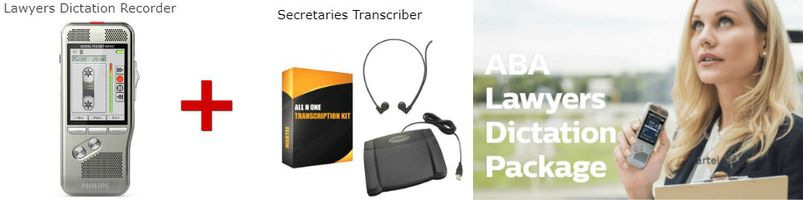
A dictation machine records spoken notes, correspondence or drafts for transcription. Choose one by checking how you record and correct work, how files reach the transcriptionist and which software the office already uses.
Compare everyday recording controls
For occasional notes, a simple recorder may be sufficient. Frequent dictation may call for quick review, rewind, insert, overwrite or append functions. Availability depends on the model and recording format. Try the actual control layout: a slide switch may feel familiar to a tape-recorder user, while others prefer pushbuttons.
A dedicated recorder and a smartphone app are different options. Check interruptions, battery planning, file access and the way your chosen software handles corrections. Neither option guarantees better results in every setting.
Plan the transcription workflow
Find out which audio formats the transcriptionist can open and whether the office needs new licenses. With supported software and configuration, connecting a recorder or docking station can transfer recordings and route them to a recipient. Confirm the full process with a sample before enabling automatic deletion from the device.
A transcription software kit may include a foot pedal and headset. A compatible pedal controls playback while the typist’s hands remain on the keyboard. Available functions depend on the pedal and application; a pedal does not transcribe speech by itself.
Match the package to the office
Compare the recorder, transfer software, transcription licenses, accessories and support together. A lawyer’s dictation recorder package or digital dictation package for lawyers should be checked against the office’s actual workflow and current package contents.
For a computer-free playback arrangement, check the exact recorder and pedal compatibility of a standalone dictation and transcription system. Do not assume a foot pedal plugs directly into every recorder.
Test before daily use
- Record a short sample and make a correction using the supported editing function.
- Transfer the file through the office’s approved route.
- Have the transcriptionist open it and test playback, rewind and speed controls.
- Review any speech-recognition draft for accuracy.
- Check access, backups and retention before recording confidential material.
Our digital dictation workflow guide explains the steps from recording to a finished document.
Dictation Machine Terms
These terms describe features found across professional dictation equipment. Specific limits and capabilities vary by model, file format and software; they are not specifications for every recorder.
- professional Lawyers Dictation Machine - Uses a slide control to Insert, Append & Overwrite.
- Advanced Recording Features: Options for recording, editing and organizing recordings vary by model.
- Voice activated recording (VCVA): Starts and pauses recording in response to sound, according to the recorder’s settings.
- Microphone sensitivity: Adjustable recording sensitivity; available levels and automatic modes depend on the model.
- Insert, Overwrite, Append, Partial Erase: Editing functions whose availability depends on the recorder and recording format.
- Index Marks: Mark positions in a recording so you can return to them. The number supported per file depends on the recorder and format.
- DS2: The file extension used for DSS Pro, an enhanced professional dictation format that can support higher-quality speech recording and encryption. Compatibility depends on the recorder and software.
- Level meter and VCVA indicator: Show recording levels or voice-activation status on supported machines.
- Folders: Organize recordings, for example by client; naming options depend on the device and software.
- Hands-free dictation - record on your dictation machine without touching it physically.
- DSS Pro encryption: Supported equipment and software may offer AES encryption to help protect dictation files. Check the encryption options and password-management requirements of the system.
- stand-alone transcription machine - Plug a foot pedal directly into your dictation machine without a computer.
- Full-duplex recording with headphones: A model-specific feature; check the recorder’s instructions for how monitoring and recording work.
- Speed: Slow/Normal/Fast
- Volume level: Adjustable playback loudness; the scale varies by device.
- Cue / Review
- Recording Formats DSS / DSS Pro / WAV / MP3
- DSS Audio File: A .dss (Digital Speech Standard) file is a compressed format for professional speech and dictation, supported by compatible Olympus/OM System and Philips equipment.
- Professional Speech Processing Software for dictation machine to manage audio files.
- Author IDs: Identify the author of a recording on supported devices and software, including shared workflows.
- Work types: Organize dictation by the type of work.
- Priority: High/Normal make certain dictation files priority to be transcribed.
- Verbal comments, text editing, pending status and file lock: Workflow features available in certain recorders or software packages.
- Programmable buttons: Change supported button functions to fit your dictation needs; the number and options vary by model.