|
||||||||||||||||||||||||
|
Dictation Resource page worlds largest!
Dictation
call in telephone system
Olympus Dictation voice recorders
Winscribe The home of Dictation
Start Stop Universal Digital Transcription Foot Pedals and Digital
cnet download dictation software
spectramedi dictation and transcription products
digital dictation and voice recorders
free spelling course dictation
Digital dictation becomes less of a chore
MTdesk - Arleen McGovern's
web site
Kim Randall's web site
Julianne Weight's web site
Medsite Navigator
KAMT - George Heymont's web site
BioMed - free membership
Life Science's
Dictionary
Your keyboard is only as fast as your ability to type. I can only muster about 35 words per minute (wpm) because of carpal tunnel, and a bunch of us are "hunt and peck" typists. Voice recognition software such as Dragon Naturally Speaking can clock in at up to 160 wpm or as fast as you can speak.
Most of my students, after completing training in how to use Dragon, can get up to 40 wpm with minimal correction time. As the software learns more about your personal speech patterns, you also become proficient and comfortable with dictation. Teaching your computer to type can be fun and is really worth it because it can save you a lot of time in the long run. For example, suppose you want to type a sentence that reads: Mount Rushmore is composed of faces from the past.
In typing this sentence, you perform these actions: (shift) M ount (space key) (shift) R ushmore (space key) is (space key) composed (space key) of (space key) faces (space key) from (space key) the (space key) past (.)
To dictate the same sentence into Dragon, you say:
"Caps on Mount Rushmore caps off is composed of faces from the past period."
To compose this simple sentence, you perform 53 separate tasks on the keyboard, as opposed to 12 for the dictated sentence. You don't have to be a rocket scientist to see that Dragon wins even if you're a fast typist. And what if you made a typing error! Now you've got to use the backspace key and retype.
However, Dragon packs a 230,000 word dictionary and never misspells a word as long as it understands what the word is (note that this is your responsibility). In addition, Dragon looks at the way you used the word in the sentence. So, if you say the word "its," Dragon knows whether to add or omit the apostrophe for you. It also knows when to capitalize words. If Dragon makes a mistake (and it will a lot, at first), you simply say "correct that," and a box appears with alternate choices. You can select the correct word by saying "choose three," for example. Dragon replaces the mistake with the correct word.
Teaching your computer to understand you takes a little time. Here are a few of the common problems people run into.
* "The computer keeps making mistakes."
In the beginning it will. Voice recognition software has to be taught. Neither
one of you understands the other. Like a small child, it tries to get it right,
but when it makes a mistake you must correct it. So, like any parent, you must
have patience! Often when Dragon makes a mistake, people try to correct it by
slowing their speech, enunciating louder, and in some cases almost shouting
at the poor computer. Would you do this to a child? Consistency is important.
Don't deviate from your normal dictation tone when you are correcting.
* "I can't seem to get my speed up... I'm spending time waiting for the
words to come up on the screen."
Wait time corresponds to the speed of your computer. An 800 MHz system processes
your dictation information faster than a 233 MHz system. Speed also depends
on the way you dictate. Do not wait for the words to appear. Dragon remembers
everything you say. Also remember to keep commands short and choppy and your
text fluent. Punctuation marks are not commands. Try not to break up your sentences
into chunks. Your speed increases as you learn to trust the software and it
learns your speaking style. To hit that 160 wpm mark, you must set aside at
least an hour a day to practice dictating. Recite from the newspaper or a book
every day for at least two months. Remember a good relationship takes time.
* "I have a laptop, and I get good results at home but not at the office."
Do yourself a favor and dump the cheapie headset that comes with the software.
Acoustics can occasionally affect Dragon's performance, but a higher end microphone
headset should eliminate any problems. LABTEC makes a good one for around $50.
Remember to go through general training again when you get your new headset.
* "I'm nervous" or "I have a cold or the flu"
If you are nervous, don't use it as an excuse. Stick to your normal dictation
strategy. If you are sick and you really feel that your dictation is not up
to snuff, you'll know immediately because Dragon won't recognize your words.
Do not change your normal speech patterns. Just as you avoid people when you
are ill, do the same with Dragon. Back off and use the keyboard until you are
better!
* "I have a problem with commands... sometimes it does not recognize them,
or they are not distinguishable from my text."
If you have a persistent problem with a command, you can remedy the situation
two different ways. The best way is to train the command. Say "click tools,"
and when the drop down list appears, say "click train words," or use
your mouse. Next type the command in capital letters in the box, and recite
as needed until Dragon recognizes the command. This procedure should only be
necessary the first time, and from that point on, Dragon should recognize the
command. The second remedy is to hold the Ctrl key down and repeat the command,
which forces Dragon to accept it. With the former method Dragon learns from
its mistake, but with the latter, you have simply eliminated the problem until
next time.
* "It doesn't recognize certain words."
Not every word you use in your vocabulary is in Dragon's dictionary, especially
proper names. You must teach the software these words, so it can add them to
its repertoire. To add a word to the dictionary, say the word or phrase, and
say "correct that." When the box comes up, simply type in the correct
word or phrase and select it. If you do it right, Dragon won't make the same
mistake again.
Like anything else, teaching your computer takes practice. With a little effort, you and Dragon can get up to that magic 160 wpm mark and you'll amaze all your friends with how "smart" your computer is!
Introduction
Dictation equipment serves as a way to capture ideas by recording a voice instead of writing or typing. The equipment is often used in businesses that bill on a hourly basis, since it can minimize the time spent by high-paid employees on any project. Dictation is also commonly used in businesses where writing is impractical, such as medical services and emergency response units.
This guide is designed to give you the facts you need to evaluate and choose dictation equipment for your business. The various sections are listed in the box above. You can choose to read this guide from beginning to end, or jump directly to a section of interest.
Visit BuyerZone.com for free price quotes on dozens of
products.
Uses of Dictation
Dictation is primarily useful in two situations. The first is when taking notes is difficult or too time consuming (when traveling, for example). In these cases, a recorder is often the easiest way to capture all the needed information.
A second use of dictation is to shift the time burdens of typing. Dictation minimizes the time needed to take down information at the expense of increasing the total work required to get everything on paper. It is most valuable, therefore, when low-salaried employees are available to transcribe the work of higher-paid executives. In companies where such a transcribing arrangement is not available, dictation is typically much less efficient than writing or using a computer.
Available Technologies
Buying an Analog System
Purchasing an analog system tends to be a fairly simple task. For recording, users have a choice between pocket recorders or desk units. Pocket recorders typically have a built-in microphone, while desk units also can accept an external microphone.
Most equipment is standardized on microcassettes, which are among the smallest type of recording tape available. However, there are other tape designs on the market, which means that you will need to check that all equipment can use the same tapes.
One of the most important features to look for is indexing. This allows the person doing the recording to add a tone to the tape at the beginning or end of each dictated message. These tones allow the transcriber to easily find the beginning of each document, or even queue documents in a particular order.
A second feature to consider is voice activation. This begins the recording process only when the user begins to speak; while this saves tape, it's worth noting that the first few syllables are often distorted as the recording begins.
Determining Digital System Requirements
Digital dictation systems are quite complex, with many different capabilities available depending on your firm's needs. To get an accurate estimate for your system requirements, you will need to collect information such as the number of phone lines that will connect to the system, the peak dictation demands on the system, the turn-around time for dictations, and the average length of each dictation. These figures will help determine the amount of storage space required as well as the usage demands on the system.
Transcription Equipment
Transcription equipment is used to convert dictated messages into written text. Buyers should look for equipment that allows the transcriber to easily modify the speed and volume at which the dictated information is conveyed. In addition, rewinding and forwarding dictation should also be a fairly simple task.
Ideally, these models should have foot controls so the transcriber's hands do not have to move from the keyboard to control playback.
Purchasing Channels and Pricing
The majority of low-end dictation units are sold through office equipment dealers and retail outlets.
Larger, centralized systems typically require much more service and support. While dictation equipment dealers do exist, most of these systems are sold by direct sales forces. This allows the company to tailor a centralized system for your office structure. If you are buying large numbers of recorders and transcribers, you should also deal with a large dealer or the manufacturer.
Analog dictation systems range in price from about $79 for a standard portable microcassette recorder to $3,000 for an advanced transcriber.
Digital dictation equipment costs considerably more than its analog counterpart, running anywhere from $1,000 to $60,000. In fact, systems can exceed $100,000 depending on the number of ports, lines, and trailers required.
Special Tips
Note the design of recording units
Some units have record buttons that could be accidentally activated when you
attempt to play back a document. This could cause unintended erasure of important
notes.
Practice
People just beginning to dictate notes or letters will initially find it quite
awkward. Rather than giving up, users should continue to practice; it becomes
much easier to do over time.
Consider voice recognition systems
Voice recognition systems are available for converting voices to computer text.
Standalone models cost $400-$6,000, while PC-based systems are $4,000-$8,000.
These systems are offered by companies including Dictaphone, Dragon Systems
(617/965-5200), Norcom (800/225-0866), and Philips. \
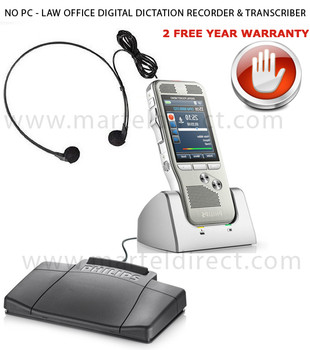
Express Dictate is a PC based voice recorder that works like a dictaphone and a dock station for a portable recorder. You dictate using your computer or a portable dictaphone/notetaker and send your recordings to your typist or assistant by email, internet or over your computer network. Express Dictate can dramatically improve the turn around time for work and, most importantly, lets you work from wherever you want. As long as you have access to a computer with email, you can dictate from where you are - even overseas.
A full description of Express Dictate follows but a quick way to try it out is to download and install now. You don't need to purchase to download and it only takes a couple of minutes to complete the process (click here to install). After you have tested Express Dictate and found it to be suitable, you can purchase a user licence (click here to purchase).
Express Dictate uses state of the art digital audio processing and compression technology to record and transmit audio. It also includes features such as automatic editing, voice activated recording and 256bit encryption. Express Dictate will also keep track of the progress of work and the expected completion time.
You can also use your existing portable dictaphone/notetaker while you are away from your computer. The Express Dictate Transfer from Portable Dictaphone/Notetaker ("Dock") feature lets you transfer the dictation quickly and easily and send it to your typist or assistant via the internet or your computer network.
Express Dictate is designed to have the features that you need made as simple as possible and is reliable for day to day operation.
Ok I installed the software, what can I say
Literally say what can I say and a list of voice requests and actions are displayed.
Say main menu to see the Talking Desktop information center or desktop to see
your familiar windows desktop with all the little icons.
Say dictation and start enjoying the benefits of voice and give your hands a
rest.
Read the documentation and try out the voice control examples.
Tell me about speech technology and dictation programs
Dictation is just one of many abilities that Talking Desktop brings to your
computer. Our software comes with a wealth of features that provide application
control, music, information retrieval and much more. Our unique usage of speech
technology allows true enjoyment of the windows environment and gives your computer
a reason to be on 24/7 providing news, stocks, email, information and fun.
We do recommend that you do enough voice training so that Talking Desktop recognizes
your voice easily. Speech recognition does require alot of system resources
and dictation requires practice.
This is new cutting-edge technology that does make mistakes and sometimes requires
you to repeat things. Our studies have shown that it takes people time to get
use to telling their computers verbally what to do and change their mindset
from traditional mouse clicking and menu hunting. After using Talking Desktop
for awhile, you will wonder how you would ever go back.
Can more than 1 person use Talking Desktop on the computer
Absolutely yes, everyone in your home or office can have their own voice profile
to interact with Talking Desktop. The speech recognition system was designed
for a variety of voices and ages.
Can I use an array (far field) microphone with Talking
Desktop
Yes, we have tested many array microphones such as Labtec, Telex and GNnetcom.
Please see our microphones for sale web page for models which can be purchased
directly from us.
What word processors can I dictate into
Talking Desktop will work with just about any word processor.
Actually Talking Desktop can dictate into any application that you can keyboard
type into.
To name just a few:
* Microsoft Word
* Microsoft Excel and Lotus
* Microsoft Outlook, Endora
* WordPad, NotePad, Write
To begin dictating say DICTATION, to end say DICTATION again.
Can I use AOL and Talking Desktop at the same time
Yes, you can use AOL and Talking Desktop at the same time.
Installing Talking Desktop will not interfere with your AOL E-mail.
You would continue to use your AOL E-mail the same way and use all of Talking
Desktop's features and abilities.
What about Internet Explorer 5 or later
In order to use Talking Desktop's Voice Internet Browser, Internet Explorer
must be installed on your computer. You do not have to use Internet Explorer,
just have it on your computer.
You can use all of the other features in Talking Desktop even If Internet Explorer
is not installed on your computer.
What about Netscape Navigator
Installing Talking Desktop will not interfere with the operation of Netscape
Navigator.
You can surf the web with Netscape Navigator and use all of Talking Desktop's
features.
Will my U.S. Regional accent cause a problem
This speech recognition system is designed for U.S. English. Regional U.S. accents
such as "Jersey", "Southern" and other regional accents
should work ok. If U.S. English is not your mother tongue then we suggest making
sure that you complete all of the voice training passages.
Do I have to read text passages so that Talking Desktop
learns my voice.
Yes, you should try to read all the text passages so that Talking Desktop can
establish a voice profile for you. The more you read, the better recognition
you will get. When we setup a New Speaker, we try to read 1 text passage the
first day, (about 10 minutes) then a different text passage each day until they
have all been read. It may take longer this way but does not seem so much like
a job. With most people, even reading just 1 or 2 passages is enough to operate
Talking Desktop pretty well with your voice.
Can I still use my keyboard and mouse.
Yes, yes, yes. We use a unique blended approach that allows your mouse, keyboard
and voice to be used at the same time and in any combination. Why, because we
have found that is is not efficient to use your voice 100% of the time and for
some tasks it is faster to use your mouse & keyboard while for other tasks,
your voice is faster.
How large is the vocabulary.
There is a initial 100,000 word vocabulary.
The number of words that you can add to the vocabulary is unlimited.
What should my screen display be.
Make sure your screen display is at least 1024 by 768
From your desktop menu, follow these steps:
Click icons - My Computer, Control Panel, Display, then click the tab Settings.
You should see a slider at bottom right of window, move to 1024 by 768 pixcels
Is a USB headset better than an Analog headset.
There are advantages to USB, but an inherent increased accuracy is not one of
them.
If you have a headset, soundcard and computer combination that works well, going
to a USB will not necessarily improve things.
What is a USB pod
The USB Audio Converter (or pod) converts the analog signal of your voice (
using an analog headset with 3.5mm plugs which fit any standard soundcard. )
to digital for transmission through the USB plug. Although this seems like a
great feature, we couldn't really notice any difference in the sound quality
when using the USB converter, or when plugged directly into the computer's soundcard.
If you have a laptop computer that doesn't have a soundcard or microphone and
speaker jacks, then this might be a good choice, since a sound card is not required,
just plug it into your laptop's USB port.
How much memory do I need
Talking Desktop runs great with 256 MB of Ram for most users. For those of you
who continually run multiple applications at the same time and wish to keep
Talking Desktop and speech recognition performance at its peak, we suggest 256
MB. Having more than 256 MB will in some cases help Talking Desktop's performance
depending on the type of other applications running.